Wednesday, September 13, 2017

The Video Game Crash of 2017

On March 3, Nintendo released their latest console, the Switch. Prior to its release, there was a lot of hype about it, and at the time, including what software the interface would be built on, etc. There was a lot of speculation that this would be an Android-based device, (example here) which I would assume would make it not only a game console, but also a pseudo-productivity tablet. Unfortunately, as time went on, I continued reading newer articles regarding its development, and realized that this wouldn't be the case. That said, I was still looking forward to the console, and the progression of its development and release.

Nintendo Switch diagram (sans Joy Con)

However, as time went on, and its release date came and went, I moved back and forth on my decision regarding if I would purchase one. A lot of its games looked impressive. Mario Odyssey, Bomber Man R, Mario Kart 8 Deluxe and Mario+Rabbids, just to name a few. I also looked into Nintendo's competition in both the console and handheld markets and the PS Vita, PS4 Pro, Xbox One X (a highly original name, by the way!) didn't really entice me. Despite the hype (or lack thereof, in my case), I continued to read up on Nintendo's console and observe its features and gaming library. Here are a few issues that have now turned me against the console and in pursuit of alternatives:

5) Backward-compatibility issues: This is the most obvious deal breaker. As this article from Mic.com states, it is literally impossible to transfer your games from another console to the Nintendo Switch without home brew-level methods, meaning you are SOL for digital content (not that Game Stop would do it anyway, but that's another rant).

4) Rules have changed: As this article from Nintendo Life states, Nintendo has updated the eShop to the point where you can't transfer games from the Wii U or 3DS line to the Nintendo Switch, but you will be able to use the same Nintendo eShop credit. Strike two, Nintendo.

3) Price: I've already forked out $550 for a Nintendo 3DS and Wii U. Add the cost of games and accessories, and eventually I could buy everything that I need to run a Nintendo switch as a dedicated server (not that it has that capability). By now I'm just ready to wash my hands of Mario and move on (more on that later).  

2) Steam: I have switched computers more than once, and every time, I have been able to log on to my Steam Account from the new PC and my content licenses have been able to seamlessly transfer my content licenses from one PC to another. One of the above articles claims that Nintendo Switch licenses will be saved to the "cloud" rather than the system, but it is too little too late. Besides, a Steam Link with Controller costs less than a 4K-compatible gaming Roku.

Steam Link with Steam Controller.

1) Better Mobile options on the market: Upon further research, I have discovered that there is currently an Atom-based handheld device that dual-boots Windows 10 and Android and also features video game controls but improved. Think of it as an improved Xperia Play or PSP Go. If its Windows Mode features Continuum, I might be able to leave my laptop in my backpack when I need to do presentations for class assignments, thus simplifying setup and processes and shortening required time. Plus, if I am desperate for Nintendo Nostalgia, I can always download Super Mario Run or other mobile apps.
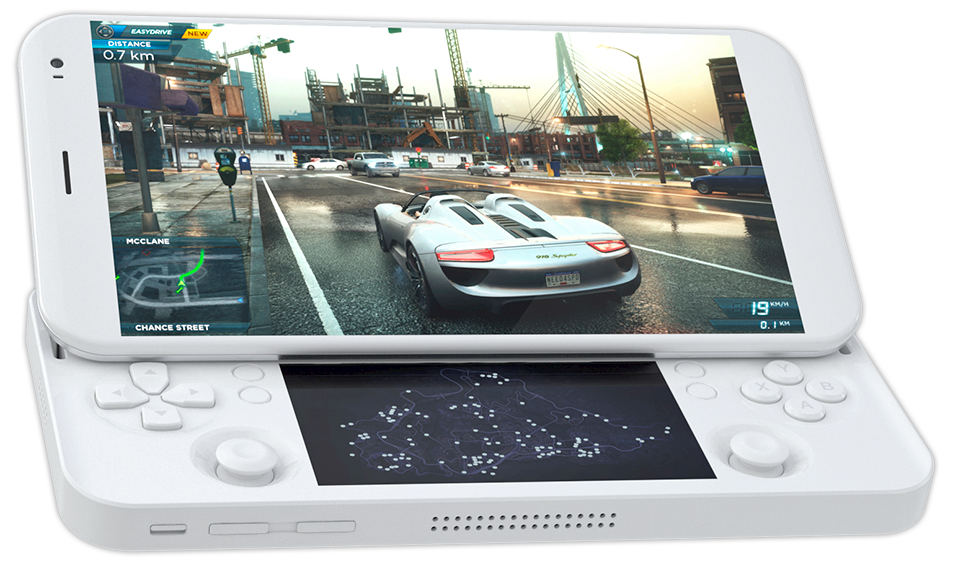
PGS "Portable Gaming System"

With those factors in mind, I am ready to wash my hands of Nintendo's console gaming market. It's been a good run, but it is time for me to move on. In a way, history is starting to repeat itself, with various types of home console/computer hybrids flooding the market, and this time, the target will be portable gaming.

For a comparison with the 1983 crash view this: https://www.youtube.com/watch?v=kv7DJrLAZus

Tuesday, September 5, 2017

W10 Review, Pt. 3 (and verdict on "Why Buy New")

A while back I wrote a comparison shopping review on the HP 6910p and Dell XT2. When I wrote this review, I was at the time in possession of a Toshiba laptop running Windows Vista Home Premium, which was very near the end of its life. Since then I have moved to Rexburg, experienced Windows 10 full-time, and have also had some full-time experience with Windows 8(.1).

After a couple of semesters, I received a refurbished Windows 7 laptop that was upgraded to Windows 10 Pro, and came with OpenOffice. I have since replaced the Windows License with my academic one as well as installed my academic copy of Office 2016 (not 365). The laptop in question (which this review was typed on) is an HP 2540p.

Overall, despite running a little on the hot side, this laptop is a decent machine. In comparison with the 6910p, the 2540p has a better processor, better optical drive, double the RAM, and almost double the storage capacity. The 2540p can also write DVDs, whereas the 6910p can only read them, but does write CDs. I've read around that the 2540p is also LightScribe compatible, however, despite being able to download the appropriate software, I have not been able to confirm this particular hardware specification.

At one point, I also bought an HDMI-based TV tuner for my laptop (#FutureReview) and I was able to install it fairly flawlessly. Initially I had a hiccup with the included software, however, after a hard disk re-imaging, I was able to get my Wii U console to output sound to it.

Honestly, there are only two downsides to this computer, and those are the Touch Pad/Track Point system and the amount of heat it generates. I have managed to resolve the first one with a $15 optical mouse from Walmart, and at some point, I will most likely remedy the heat situation with an external fan system that mounts to the bottom of the machine. Despite these two flaws, I would highly recommend this machine to someone who is looking for a school computer that can handle a few Steam games.

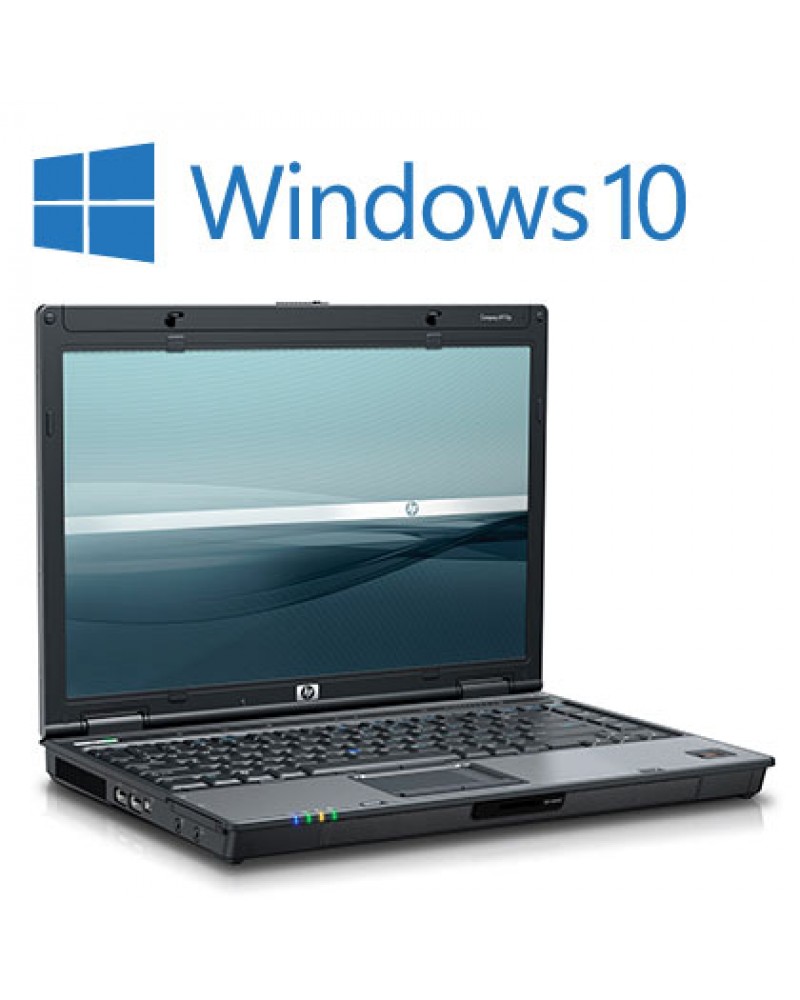
HP Compaq 6910p
HP Elite Book 2540p


ModelHP 6910pHP 2540p
Processor2.2Ghz Intel Core 2 Duo  T5900 (Penryn)2.1Ghz Intel Core i7-640LM (Arrandale)
RAM2GB4GB
Storage80GB120GB
OpticalDVD-ROM/CD-RWDVDRW
OSWindows 7 Home PremiumWindows 7 Pro
(Both upgradable to Windows 10 Education)
Other Specs for 6910p and 2540p can be found at Newegg.com (links are model numbers)

Update: As of September 7, 2017, I have since made new discoveries while tinkering with my 2540p laptop. After some tinkering around, my major source of overheating has been the laptop battery. Until I can figure out a permanent solution, I have been currently operating it while plugged into an outlet and have left the battery disconnected and set off to the side. Hopefully this weekend I will be able to figure out the culprit as I will be able to talk with the person who gave it to me/set it up.

Update #2: After my work shift on September 8, I did some browsing around and was able to find and purchase an external fan system for only $5. Very reasonably priced, and has thus far managed to resolve the overheating issue.

Monday, January 16, 2017

Home Networking Simplified, Part 2*

*Author's Note: See Part 1 here. * 

During my time here at BYU Idaho, I realized that the apartment I live in is comprised of a brick exterior, which makes getting a good Wi-Fi signal a pain in the butt, especially since I am in one of the corner apartments. Anyway, a couple of weeks ago, I went down to Walmart to try and remedy this situation. 
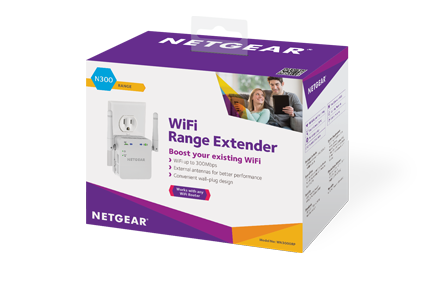
Wi-Fi Range Extender ("Booster")
Available at most electronics retailers
Self-Explanatory device w/Ethernet.
During this particular trip, I remembered that my brother used to be a Comcast Internet technician, as well as some of the advice I used to overhear as a result. At any rate, after either a phone call or remembered advice, as well as the consult of a Walmart associate, I settled on the product featured below, and took it home to set it up. 

After looking through the included instructions, I was able to set it up to mirror my apartment's existing Wi-Fi, with an SSID of x_Ext (where "x" represents the original Wi-Fi identity). I was also fortunate enough to have purchased an Ethernet cable on a previous trip because this one did not have one included in the box. 

At any rate, the device's instructions were very simple and required connecting the device to my laptop with the aforementioned cable, and logging in to the device via Chrome (or another web browser) and connecting it to my apartment Wi-Fi. 

Once I was on the Netgear page, the process was very simple and had a novice-friendly menu. I followed the instructions in the box, which directed me to a Netgear website and from there, I followed their on-screen prompts. The process was very similar to installing a Wireless router (see note above) and the device itself works very effectively, as long as the host Wi-Fi is working. 

At some point this will come in handy if I ever take a work from home customer service job, which normally requires hard-wired internet. Initally, I considered purchasing a "Power-line" kit, however, those require an existing Wireless router, which didn't help my situation, other than buying a separate product at extra cost. 

This device, however, doesn't require an existing router, and is equal to stringing a network cable from one room to another, but with the convenience of an existing Wi-Fi signal. 

In simple terms, it's about as easy as connecting a broadcast antenna to your television. I don't regret buying one, and would recommend it to anyone that is either a) having wireless issues or b) needs to be wired in to the internet but doesn't have that luxury. 

Thursday, July 28, 2016

Play it again, Google!

It is official. On July 25th, I was finally able to install the Google Play Store on the Kindle Fire. I had to use a combination of about four different tutorials in order to get it to work, but that's beside the point.

It was a little frustrating at first, but I managed to be able to do it without rooting the device. I don't remember the exact order, but I used the Windows Instructions found here and following that, I also downloaded and set up the *.APK files on the Amazon Kindle Fire found here and installed them using ES File Explorer as well as ES Task Manager.

Once I installed the ES File Manager and ES Task Manager apps, I was able to run them and install the necessary services as noted above. After running the APK files for Google Play (which only installed settings and the Play Store) I was able to run and download most apps that were available. Initially, I wasn't able to install Pok'emon Shuffle or Pok'emon Go, but after a day or two, they installed without any issues, especially after an update. To date, the only app I cannot install on the Kindle that I had on the Samsung Galaxy S3 is Microsoft Office.

In a way, it's kind of a moot point right now regarding whether or not I have the RTD app, because I do not currently live within the boundaries of the Denver Metro area. At some point, I will need to see if I can download the app that is used by Salt Lake Express, so that I can have easier access to the information regarding when the Walmart Shuttle arrives and departs.

On another note, I have officially tried Pok'emon Go, and I don't see what the hype is. It honestly just feels like a fancier version of the GameBoy games without the RPG part. Both Pok'emon Shuffle and the Pok'emon Trading Card Game (the latter of which I uninstalled, due to storage concerns) are honestly a lot more fun for me. Even Nintendo's self-proclaimed "flagship" game, Miitomo is a lot more fun, and it is basically Nintendo's take on The Sims. Until I get a MicroSD card, I will probably uninstall it and put the Pok'emon Trading Card Game back on because I find it more enjoyable.


Sure, there is no consistently reliable public transit in Rexburg, but honestly, there's not much to do here, either. As I have heard people say before, "Walmart is Rexburg's mall." Therefore, it only makes sense that the Walmart Shuttle is its primary form of public transit. Sure, there are other far-reaching services, such as TRPTA and the actual Salt Lake Express, but both of those cost money, and unless I am desperate to go to Idaho Falls, or have tickets to attend #LDSConf live, I don't really see me having much use for either of them, especially now that I have a bicycle.

I was also able to get new wallpaper for the Kindle Fire, so now it looks almost identical to the Samsung Galaxy S3 that I wrote about almost a year ago. Probably the main key difference is the lack of Android widgets because FireOS replaces them with its own variations that tie in to Amazon services. At any rate, it's nice to have the Play Store and its exclusive apps back, even if it is at the cost of on-board storage. 

Sunday, June 26, 2016

Windows 10: It Doesn't Score That High

About a year ago, I preemptively wrote a review of Windows 10, and voiced my skepticism of it without really giving it a fair trial. Since then, I have gone off to Rexburg, Idaho to attend school at BYU. 

Coincidentally, I have received a chance to try the operating system, because their campus is gradually upgrading their systems to it. I recently got to sit down and try one of these computers, and as they say on courtroom dramas, "the previous motion is sustained." Solitaire runs slower than it did on Windows 7, but it seems that the upgrade process is smooth. There are definitely some good ideas with the platform, but as does every first generation Windows release (pre-service pack), it leaves a lot to be desired.

For example, a solitaire game that didn't even load after a couple of minutes is outright pathetic. Second, the customization options felt as though they were somewhat lacking. Normally, a person can scale back their Windows' visual features to make it look like Windows 95, thus making the computer run faster. However, this is not the case with Windows 10. Sure, there are promises of "mods" or whatever on the internet that promise to restore that kind of functionality, but honestly, that's not really a practical option, and that goes for both economic value and the effect of system performance.

Would I upgrade for myself? Probably not. In fact, I'd be more likely to save up for a used Macintosh before I ever bought a computer with Windows 10 pre-installed. Besides, if I need it that bad, the school offers the Education edition though a few different outlets, including its bookstore and DreamSpark. For now, I feel perfectly comfortable with Windows 7, 8 or even XP.      

Saturday, June 11, 2016

Eight: Ahead of its Time and Gone too Soon

Wow. It's seriously been six months since I have written a review?! This changes now! When I started school at Brigham Young University-Idaho about two months ago, my sister-in-law loaned me her laptop on the grounds that I keep up with my assignments and get good grades in all of my classes that add up to a total of twelve credit hours (C's or better).

Windows 8's controversial "Metro" or Start Screen that replaced the Desktop and Start Menu by Default. Oh if people only realized of the transition from Windows 3.1 to 95!

Now that I am in the second half of the semester, and I have one class under my belt, with two weeks down in another class for the second block period, I have finally had a moment to sit down and write this review. Windows 8.1 was/is a very good concept for an operating system. The problem was that it tried to do too much at once. 

Microsoft's plan was to have "one operating system for every device in your life." The problem was, at the same time that 8 was being developed, Microsoft was also experimenting with the ARM processor architecture. 

This platform being different from the x86/Intel platform, one would think that Microsoft would have learned this lesson from the fiasco of porting Windows NT to PowerPC and other less-dominant platforms of its era. However, since the company has changed hands multiple times in the past twenty years, these lessons get lost with time, much like the key to the City of Ember was lost as it was passed down through each mayor until it ended up in the hands of the descendants of a previous mayor.

But anyway, back to the review. Between the change of interface on its users, and the lack of support from software developers, much like (Windows Media Center), Windows 8 was doomed from launch day. Numerous reviews talked about the confusion between Windows 8 and Windows RT, including the fact that the latter did not have backwards compatibility with older Windows software. Various critics cited failed marketing tactic as the main reason for Windows 8 being the biggest failure since Windows Vista.

And that's another thing: mobile applications from the Windows Store (apps) on Windows 8 are/were forced to run in full-screen mode. On a smartphone, like the HTC One M8, or tablet, like the Microsoft Surface, this is just fine, but in a corporate/desktop environment, where the average user doesn't have a touch screen in their standard office (and upper management is too stingy to pay for upgrades), this kind of interface this kind of interface is, to be quite honest, a step backwards, especially if you are the type of experienced computer user like myself that remembers the good old days of MS-DOS, where every application ran one at a time, in full-screen (Real) mode. At least Windows 8 didn't revert THAT far back (although if it had, the Paris Airport could have upgraded from Windows 3.1 with no hardware costs whatsoever).

Classic Shell for Windows 8.1. This is an add-on that not too many people whom use the OS are familiar with. Had it been advertised more, it might have saved Microsoft's bacon.

Another part of the problem with slow adoption of Windows 8, was that nobody except the technologically gifted was aware of the software extensions that gave Windows 8 the familiarity of its predecessors. Sure, there were articles on websites such as CNet for applications such as Stardock's "Start8" that restored functionality of the start menu, but these cost money, and weren't guaranteed to be friendly with the operating system, but these had the potential to hose your registry if something went horribly wrong. 

Around the same time as the introduction to these third-party applications, Microsoft introduced their own extension known as "Classic Shell." Unlike third-party applications, Classic Shell works more efficiently on the Windows platform, since it is designed in-house by Microsoft itself. Having this programming benefit means that the interface works more seamlessly with the OS and isn't prone to adware that traditionally asks the user to pay for upgrades or other products from the company (although I hear that the Windows 10 version of Solitaire does this--but that's another review).  

Sunday, December 27, 2015

This tablet's on fire! (Not literally!)

So, this year for Christmas I received some really neat items. One of them was an Amazon branded tablet (which I also happen to be starting out on as I am writing this review).

There are a lot of neat things about this tablet. The Amazon Silk browser is almost as good as Google's Chrome. Reading on it is nice as well because the resolution is adjustable to make the print easier to see. 

Once I got the device, I almost immediately decided to set it up. First it went through the process, and when it got to the Amazon part, it automatically connected to Matt and Emily's Prime account, which made the whole process quite a lot easier. I also got a folio cover case to go with it, as well as a set of three screen protectors, all of which installed without any real hassle.

The tablet also takes really nice pictures, which, in terms of quality, are better than Nintendo's handhelds, but not quite as good as the Samsung Galaxy S3, and I didn't notice that the Fire tablet had a flash feature, but I'll look into that more at some point.

I've only installed six apps on the tablet so far, and all of them have been, for the most part, satisfactory. 

The LDS Gospel Library is on par with the variation that I have on my phone, so I haven't had any issues with it.

Sonic CD is, for the most part, easy to control (and apparently that one was downloaded from my brother's Amazon Cloud drive!). 

I also have an app called OverDrive, which allows the tablet to connect to any public library lending system in the country, and my library card from Ohio is apparently still valid, so until it expires, I won't have to get a new card for Colorado or mooch off of my brother's card anymore. 

This will also most likely be how I read books I review in the future, so be warned, when future ISBN's show up on Literary Novelties, they will most likely be for the eBook version and not the physical hardcover version, unless I start listing both separately and accordingly.

One picture example that I will admit is missing from this review is for the interface itself. Because it is an Amazon product, the interface is much more customized when compared with other Android-based products, such as the Samsung Galaxy S3.

While some would say that wouldn't necessarily be a bad thing, in order to obtain access to services with other app ecosystems, such as Google Play, it is, ironically, a requirement to root the tablet itself. 

All in all, for the most part, I would recommend this device to someone whom is unsure about what kind of tablet that they are interested in, and also for someone who doesn't have a GMail address, and therefore, no ties to Google Play.


On that note, even though I do have ties to the latter, this is still a fairly solid device, and although I would most likely have to root the tablet to have Google Play installed (I've read circumstances to the contrary, but I have doubts about them), the Amazon app store does have a decent app selection in its own right (more on that next in the top five section).

At any rate, if there is some uncertainty about what types of apps should be downloaded to the tablet, fear not, I am able to shed some light on that subject. I even have had some experience with this before, because my very first Android tablet (made by "Polaroid" (Southern Telecom--the original company went bankrupt and the trademark was acquired) exclusively had the Amazon App Store pre-installed on it.

With that, here are five apps that I would definitely recommend installing right off the bat. Keep in mind that some of these may or may not be free, but that depends on what Amazon's "free app of the day" is.

5) Flow - This is a sort of "connect the dots" kind of game where you have to match each colored dot with each other and make a corresponding line. It's fun and also a good way to calm one's nerves and unwind after a stressful day.

4) OverDrive - For electronic books, despite being an Amazon device, this app is probably the way to go. It synchronizes with the library of you choice, providing you add your card number and corresponding PIN.

3) OfficeSuite Pro - While most likely not as complete as Microsoft Office, it seems as though it is still a viable alternative, especially since the Kindle Fire does not have Google Play, and only Microsoft Word seems to be available on the Amazon App Store.

2) Amazon Silk - Yes, it seems like kind of a cop-out to list the Kindle's built-in browser as one of the top apps available for it, but it handles browsing the internet just as well, if not better than Google Chrome. Also, cop-outs are the primary reason why this app is listed at number two. It didn't seem right to state that the best feature of a tablet was its browser.

1) LDS Gospel Library - Compared with its Android (Google Play) counterpart, this version reads a lot more nicely since the Kindle Fire can have its print scaled up a notch or two.

So there we have it. Those are five apps to get a new Kindle Fire owner started. As I get more familiar with the device, I will probably make another list. In the meantime, I plan to have more fun with the device and get to know it better.