Thursday, April 24, 2014

Look! There's a picture inside that picture!

Now, I know what you're thinking, and no, this post is NOT about the well-known feature of digital cable boxes and satellite receivers. I am instead talking about a "virtual machine".

Now, you may ask what the crap this is, and quite frankly, I can't say that I blame you, and therefore, that is why this post exists. 

A virtual machine is a piece of software that emulates a computer or other piece of hardware, much like the a fore-mentioned feature. It has a host it relies on for hardware, so keep that in mind, should you ever decide to venture into this amazing world. Usually if you are doing this, the host machine would have at least two gigabytes of memory, because the host machine needs enough power and other resources to run both operating systems. Trust me, I have tried to do this with less, and unless all you plan to do is play DOS games all day, you are not going to advance very far with your efforts.

Naturally, to get this ball rolling, the first step would be to download software that allows you to set up and run a virtual machine. There are quite a few to choose from, and the top 3 are VMWare (which has several variations), VirtualBox, (made by either Sun or Oracle, depending on the version obtained), and Microsoft/Windows Virtual PC, which, to be honest, is only good for running other versions of Windows, so, it's just best to stay away from it.


The next step would be to allocate system resources to the virtual machine. I know what you're thinking: "I should just be able to load an operating system on to this new machine I made and install Windows, right?" Well, if that's the case. Stop reading now, because you are not ready for this kind of a daunting experience. No, just like any computer, a virtual machine needs hardware and software that it can use. In this "case", we need to allocate resources from the host machine (the hardware that you are doing this project on) to the virtual machine. In order to do this, you will right-click on the virtual machine you created and look for an option to modify its settings. From here, you will be able to adjust the memory, hard disk size, and what types of drives the virtual machine is able to use. Be careful, though, because you need to leave enough resources for the host machine, and your virtualization software will warn you of this.

After all is said and done, you should have a nice empty virtual machine that has no operating system. This is the point in a hardware build where you would power the machine up and see if it will boot to your BIOS Setup Utility. If everything checks out, you should be in the clear to install an operating system. Now would actually be the perfect time to hunt down a CD image (usually with an extension of .ISO) of your favorite operating system or dig through the closet for that old CD/DVD or set of floppy diskettes. 


Once you find your media, set your boot order accordingly, insert the first CD or diskette, and lastly, exit the BIOS and reboot the VM (NOT YOUR HOST PC!) Now the fun should begin....

After the VM reboots, which, shouldn't take more than a few seconds, you should be well on your way to installing an operating system. Whether it be Linux, Windows, or something else, follow your installer's instructions accordingly and you should be on your way to a nice, new desktop while still leaving the existing one intact. If you used an actual disk to install your software, make sure that you tell your virtualization software to "release" your CD drive before you close it, or I'm sure all Hades will break loose somewhere down the road. 


Now that we have all of the instructions out of the way, let's explore some practical uses for a virtual machine. The most obvious would be for transitional purposes. When Windows 7 was released, (which is the OS that I used to type this post), users of the Professional Edition or higher were able to use a feature known as "Windows XP Mode". This allowed the user a fully licensed copy of Windows XP Professional Service Pack 3 (along with all of the included features) at no extra cost. Ironically, when I first started classes at Sinclair about 4 years ago, they were TEACHING Windows XP, and the computers we used had this exact setup only instead of Microsoft's Virtual PC branded software, they used VMWare Workstation, but the concept is the same.

Another practical use would be to try a new operating system without doing any *reasonably* irreversible damage. I actually recently did this on the computer I use in class and I was able to"successfully" load Android KitKat to its desktop. I use air quotes because although it booted without any issues, when I tried to activate the keyboard and mouse, it pretty much locked up the host machine. But anyway, to those reading, I hope this enlightens you, and if it ain't broke, then you are doing something wrong (or right, if you're a wimp, like me!).  


Happy Virtualizing! :)


This is an example of how a virtual machine looks when it is "powered on". Once your operating system is installed, it will show the desktop of your chosen platform, instead of an install screen.


Saturday, April 12, 2014

A groundbreaking game returns to the consumer spotlight (Oh, and the Wii U has photo sharing!):

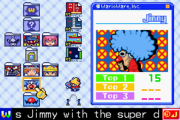
Now, you're wondering, since this could technically be considered a "flashback" post, why I'm not choosing a classic game like "Super Mario Bros", (and don't get me wrong, that's a great example for this post, except that it does not fit the genre I will be referring to). This genre is a little hard to sum up without proper nouns, so I will just use the prime example that the screen shot will refer to, and that is "Wario Ware".

This game made its debut on the Wii U about 3 days ago, and yesterday, I decided that the urge to replay it just didn't warrant an emulator (plus the Wii U controller is just like a GameBoy Advance). As you can see, I've already completed 7 out of 10 mandatory stages and unlocked 6 bonuses as of this writing, and I've only been playing it for 1-2 days! Talk about addictive!


Anyway, the way this franchise works, is you pick a character/category, and the screen goes through a small cut-scene, and suddenly you are thrown into a challenge with only one command (both shown above). Your controls are the A button, directional pad, and the start button if you want to pause/quit the game like a wimp--oh, and you only have three seconds to complete each "Micro Game" in order to progress to the next game, and eventually, level. All of the levels that are represented by a folder are mandatory, and some of them will earn you bonus games with no time limit, as shown in the above screen shot.


There's also another feature called the "Game Grid", (featured above) in which all of the micro games from the main levels are featured individually with their own high score. To earn the final bonus game, you have to earn all of the "Clear" scores on the game grid for each level. The third button is "options", which honestly isn't that interesting, so I will not include a screen shot for it. The game can be played without the TV running, which is nice, especially if you are used to playing it on a hand-held device, so it feels just like the original GameBoy Advance, except that the smooth edges of the Wii U GamePad are contoured to fit a person's hands.

Now, if you're wondering where the side thought in the post title came from, the Wii U allows you to pause your game in mid-play and do other things, like search for games and browse the internet, which, apparently includes posting photos to facebook (or another photo sharing site), which, I consider to be a plus, especially if you are stuck in the middle of a game and need to look up cheat codes.

Bottom line is, at a cost of only $7.00 (before tax) this game is worth every penny spent, and you will definitely get hours of enjoyment out of it (unless a 3-second adrenaline rush isn't your thing).

Tuesday, February 18, 2014

Careful--It might become "self-aware"

So, last year my mom gets a letter in the mail from Time Warner saying that they are planning to "upgrade their signal to "digital" (right, I've heard that before), and as a result, that means that they are going to cut channels from our existing lineup if we do not order these extra boxes. Now, granted, they sent us this letter MONTHS before the deadline came, but apparently it takes me that long to study up on a product before I decide to order it.

Needless to say, the day of said deadline came and went, and the most important channel that we lost was 'The Weather Channel'. Well, at this point, neither of us are exactly "pleased" at this point, but those are the breaks.

Flash forward to November 12th of last year: so, Mom and I decide to go ahead and order these "digital adapters" that are mentioned in the above letter. We go online (and fortunately I have the website bookmarked--thank you Google Chrome!) and order them, and finally we print our confirmation. Now the waiting begins.


Finally, about 3 days later (not too bad, since most shipping estimates are two weeks are more--one of the FEW advantages of living in Dayton, Ohio) our adapters come. I open the box they are shipped in, and in the box are two adapters, two remotes, two pairs of batteries, two HDMI cables, two coax TV cables, two a/c adapters, instructions for both remotes, and a single set of directions on how to set up our equipment. Fine. I unpack the boxes, (hence, the content description), hook everything up, and call the toll-free number listed in the instruction booklet, and everything is set up perfectly!

Now, I know what you're thinking, but no, my story doesn't end there. As it turns out, there's a reason that they have you call that number. Unlike a cable modem, you cannot change TVs on a digital adapter whenever you please. I found this out the hard way, which I will get to later. Anyway, on November 30th, which happened to be the day of "The Game" (OSU v. TTUN), our cable went out, and we had to have a technician come out and have our signal reconnected. I had JUST got Windows 7 at the time, and it was having issues recognizing my TV tuner anyway, but that seemed to be beside the point. At the time we had resulted to listening to in on 1410 AM, but then the cable got fixed, so we tuned in to ABC and watched the rest of it there.

Anyway, back to how this thing works: apparently, once you connect the box and call the number, the box has to stay on that TV. For me, I think that stinks, because I've grown quite accustomed to the "plug and play" nature of hardware like the Wii U and Roku. I've already had to send out one of their technicians ONCE because of a signal outage (see previous paragraph), so I was not about to call them again because of something I did. So, now we're stuck with only 1 TV with a "working" signal, and my box is just sitting there connected to an anolog TV giving me the "terminator" look with it's red blinking light. Oh well. At least we have one TV with a working signal in the house.

So, on that note: did any of my readers hear about the Time Warner-Comcast merger? Sounds like a winner in my book:

http://news.cnet.com/8301-1023_3-57618841-93/comcast-time-warner-cable-to-unite-in-$45.2b-merger/

Sunday, January 26, 2014

Chrome OS: A platform with potential, but also room for improvement


Okay. A couple of years ago, I bought a new-fangled type of laptop called a "Chrome book". By now most people reading this should have some idea of what I am talking about, as now they sell them in most electronics retailers, but when I got mine, it was not as mainstream of a concept, and I had to order one through Amazon (before they implemented their sales tax policy). In short, it's a laptop with an enhanced browser for a GUI (graphical user interface) and a Linux command line (an interface that only involves typing) Back-end (or "guts" of the software).


When you first set this thing up (or do a system restore), like any modern Operating system, there is a short series of dialog boxes to assist in the setup of the user interface, such as time zone, number of users, and network connection. Fine. Then it checks for updates, and, unlike Windows, it will seamlessly do this without hogging system resources, and only requiring a simple restart, which is actually nice, because, I've done updates on Windows,and it's a notable pain in the butt, because restarts will most likely take minutes, not seconds, plus, unless you have a network shared drive, and a Gigabit Internet connection, Windows updates are notorious for bottle-necking your Internet connection speed.


Next, you will be dumped into the Chrome "desktop", which contains the Chrome browser, a customizable wallpaper (as of one of the most recent updates) and the Chrome App Launcher (which is now available for you suckers that are stuck using Windows--and yes, I am one of them).

From here, you can change the background (with a right click--methods will vary, depending on your hardware, so check your documentation carefully), launch "web applications", (some are awesome, others, not so much, but again, hardware also affects performance), and customize other features of the OS. Now here is where you have to be careful, because if you have the Chrome browser installed on another computer and you are logged into both copies of the browser, then all of your apps and settings will copy over to the next device you log in at, which, can make or break system performance over time, even though Chrome OS has no major footprint or “Windows-style” registry environment.


Now, if you did not initially log in when you set up your Chrome book, then changes that you make to it will not take a permanent effect when you shut the machine down, so be sure to take that into consideration if you do not use Gmail for your email.


Another thing: I've heard rumors that you can root this thing and set up another Linux distribution on it, and I have seen detailed instructions stating such allegations, but thus far, I have studied these in great detail, and tried them to a tee, but thus far, I have not been successful in my attempts, so try this at your own risk. Just make sure that you follow rooting directions that are specific to your Chrome device.


Overall, though, you can do most basic things on a Chrome book that you can do on a Windows PC (except maybe picture and video editing, but again, those results will probably be dependent on the build of the individual machine, and there are web-based alternatives to MSPaint and Windows MovieMaker, such as Splashup – (http://www.splashup.com/) and Pixorial, however, alternatives such as these have left me feeling slightly disappointed, yet hopeful for vast improvement over time. I don't feel that the fault lies in the Chrome book itself, (although it does lack some Java support), but rather in the infrastructure of existing internet connections and the speeds thereof.
The Samsung 500c after the first major Chrome OS update.
Samsung 500c turned horizontally to show its dimensions.


Tuesday, January 14, 2014

"This console comes with a tablet?!": A beginner's guide to the Wii U

So, I've owned the Wii U for about a year now, and so far, it's not as bad of a console as people say it is. Sure, I don't have an HDMI compatible screen, so I can't utilize its full graphical potential, but overall, considering its backward-compatibility with its predecessor, and Nintendo's track record with hardware reliability, (most of their cartridge consoles don't break down until they are past their mainstream lifespan) then it makes for a pretty good value for the price when stacked up against its competitors, the Xbox One and PlayStation 4.

Besides backward compatibility, and solidly built hardware, there are other advantages to owning the Wii U, like the tablet-style controller with buttons, a directional pad, touch-screen with stylus and TWO analog sticks, as well as remote control functionality and built in camera, not to mention the GAMES, which, as some would say, is the most important part of choosing a console platform.

Below, is a list of what I consider to be the best games (and other apps) for new Wii U owners (in no particular order of preference) They also have the method of purchase listed on the left of the game title:

1. (Wii U Retail/Download) New Super Luigi U | $30, RT, $20, DL (or bundled with console)

Personally, when going with this option, I would go with the Retail copy, unless it was included with your console, because I think that having to pay $60 for a game that lets me play another game that costs an ADDITIONAL $20 is robbery.

2. (Wii U Retail/Download) NintendoLand - $60, (or bundled with console)

This is a good first stop because chances are, this was included with your Wii U console when you opened the box. It's a variety game, kind of like Mario Party, and it's a good way to get a feel for the controls of the Wii U Game Pad.

3. (Retail Only)(Wii -) New Super Mario Bros. Wii - $20,  new, or check your favorite video game specialty shop for used prices.

Now that New Super Mario Bros. U is out, this game has become quite affordable, and is just as much fun as it's Wii U upgrades. Definitely a must have, whether you plan to upgrade to Wii U or even just stick with the original Wii.

4. (Download Only)(Wii U) NES Remix - $15, Nintendo eShop (Wii U)

This game kind of has the vibe of WarioWare, only without all of the back story and other non-classic levels that most people probably don't care about. You can play each game individually or choose the "remix" button and play through a bunch of them at once, and see how far you can get. I feelthat everyone should play this game at least once.

5. (Download Only)(Wii U) Little Inferno - $10, Nintendo eShop (Wii U)

An indie game where you burn things. Now, I know what you're thinking, and if you are skeptical, head over to either Nintendo.com or store.steampowered.com and watch the video. It's hilarious, and you will have the theme song in your head all day. It kind of has the same vibe/style as World of Goo, so if you played that game and loved it, then I have no doubts that you will like this game as well.

6. (Download Only)(Wii U) Dr. Luigi - $15, Nintendo eShop (Wii U)

If there's any of you that loved Dr. Mario growing up, but feel like Luigi got the shaft by not being included, then this version is a must-have. It also has similar graphics to it's Nintendo 64 and WiiWare versions that came before it, so it's probably worth a look. Especially considering how affordable it is.

7. (Download Only)(Wii U) YouTube App - FREE Available in Nintendo eShop or Wii Shop Channel for Wii owners

I know what you're thinking: "Why have YouTube on a game console? Well, if you are like me, and remember when the Wii Internet Browser included "YouTube XL", then this is AT LEAST a 90% improvement. Sure, it's still not as good as going to a browser and typing "YouTube.com", but for a mobile/
console opiton, it works pretty well. This is also available on the original Wii, in case you are not completely sure you want to upgrade.

8. (Retail/Download)(Wii -) Bit Trip complete - $20, new (games can be downloaded separately from Wii Shop Channel)

Maybe I'm crazy, but I consider 6 games, plus a music CD for only twenty bucks a bargain, especially when you think about how many Wii Points that you would have to redeem to download each of these games separately. Plus, the music is good, and the best way I would describe these games would be a sort of "polished Atari 2600" type, and I really, sincerely do mean that in a good way, in case anyone thinks in the contrary.

9. (Retail/Download)(Wii -) Kirby's Dream Collection - $50, new (4 of these games can be downloaded separately from Wii Shop Channel)

Another great collaboration of games. This one costs a little bit more than BIT.TRIP, but it's definitely worth it, especially considering that you technically get SEVEN games instead of 6, like they want you to believe (yes I consider the "new challenge stages" to be a separate game in its own right).

10. (Retail Only)(Wii -) Mario Kart Wii-$50, new (or Bundled with Wii Mini for $100)

If you want Mario Kart with motion controls, then this is the game to get. Sure, you could get Mario Kart 64 either through emulation sites or the Wii Shop Channel, but right now, home brew Nintendo 64 emulators are spotty at best when it comes to compatibility and more than likely, the Wii Virtual Console version will force you to use the obligatory "Wii Classic Controller", which, is kind of neat in theory, but the fact that it requires the Wii remote to operate is a little annoying, in the argument that it seems to be able to drain the batteries. Also, if you buy it in the box, it comes with a molded plastic steering wheel, which, is good for playing other Wii games as well, such as Raving Rabbids TV party, and the ExciteTruck and ExciteBots
games.

11. (Retail Only)(Wii -) Rayman Raving Rabbids TV Party-$15, new or $7, used @ GameStop

I almost didn't put this on on the list, although, I did mention it in my MarioKart review, but then I realized that it wouldn't really be fair, as I have already played through it once and really enjoyed it. It's especially fun if you already own Wii Fit, because you can sync the Wii balance board up and sit on it like you are riding a toboggan  and you can also use your body to steer through the snow. Definitely another game that everybody should try at least once. Also you can use the steering wheel from Mario Kart (as mentioned above) in the tractor driving game and you can use the balance board for gas and brake pedals.

Now, a little more info on the features: first thing you want to do is register your console to a Club Nintendo account. If you didn't do this when you owned the original Wii, then shame on you, because you missed out on some great reward opportunities, which, help you get a lot more out of a Nintendo-branded console. To register games and your console to said account, once you sign up, you will look for a piece of paper with a serial number on it and the Club Nintendo logo (your console's serial number label will be placed on the side where you mount the brackets to make it sit upright).

Once you have this account, you will want to make a copy of your log on credentials and enter them on both the Wii Shop Channel and Nintendo eShop in order to earn points (referred to as "Coins" or "Stars", depending on your geographic region) for each game you download to your Wii U console. Once you do this, you will  be able to earn said points on downloadable games as well as retail ones, which, allow you to get cool stuff such as more downloadable games and even PC screen savers, as well as other novelty items.

Next, if you purchased a Deluxe Wii U console (it'll be black and come with a charging cradle) then after 24 hours of purchasing your first downloadable game (and every 24 hours after every purchase thereafter) you will be able to earn a separate set of points on each downloaded  Wii U game from the Nintendo eShop (Why do I specifically mention the Wii U in this paragraph? Because the Nintendo 2DS and 3DS also utilize the Nintendo eShop and I don't want to confuse the issue). Once you start earning THESE points, (each game is worth a fraction of the cost in points: e.g. $14.99=149pts.) then if you earn 500 of them, you can redeem them for $5.00 in credit for the Nintendo eShop, which ought to be good on both Wii U and Nintendo 3DS/2DS games (if you own one of those).

Bottom Line: Don't knock the Wii U for not being a good value. Especially since they've already knocked $50 off the original MSRP. The lower price and backward compatibility (which are two things Microsoft and Sony can't brag about) make the Wii U the best bang for your buck. Just be careful when making a trade-in purchase, because if you have downloaded games on your original Wii, used stores (*cough, cough* "GameStop") WILL NOT do an in-store system transfer.

One final note: I added the prices above when I initially wrote this article and used sources like Amazon and GameStop as citations. Because such retailers often change their prices depending on demand and age, the above listed prices might not reflect current market values, so proceed with caution when doing your comparison shopping.

Sunday, January 5, 2014

--Why Microsoft will never be able to replace Windows XP--

Captain's Log - Stardate: April 8, 2014

Okay, I've been using Windows XP since about 2003, and for the most part, I've warmed up to it. Sure, it has it's quirks, but so does every other operating system. When it comes to compatibility, though, you just about can't beat it, unless all of the games you run are made for DOS (but that's another post for another time).

Anyway, a few months back, I bought an analog TV tuner (I didn't notice the signal type at the time, but now the $30 price tag makes sense-again different story for a different post). The point is, under Windows XP, it runs great, the software it came with runs spectacularly, and I even have sound output on it. Not too bad for $30.00, right?

Then I tried it on Windows 7......

First off, the first method I used was Windows Media Center, which, with only 1GB of shared memory, ran like I was using MS Office 2010 on XP SP3 with less than 1GB of RAM (again, another story for another post). It was almost perfect for DVDs, but that didn't satisfy me. I tinkered around with the settings, and I could sort of get a TV signal with just the cable line, but around that time we got these new boxes called "digital adapters" so we could get back some channels that we lost (another rant for another post) and it almost worked with Windows Media Center on Windows 7, but not to my satisfaction.--Oh, and don't even get me started on "User Account Control" (those that have used Windows 7 know what I am talking about and are welcome to explain it to confused readers in the comments).

So, to remedy this, I decided to track down the software that came with my TV tuner. Since the drivers were already set up on Windows 7, this meant all I had to do was to try to find the TV decoding software: an easy task, in theory, but every search engine will deliver about 10 useless results for every one good one (maybe worse than that?). Anyway, after a few days, I come across the website of the distributor for the software I need, and I see that they have a "free trial". Naturally, my first thought was something along the lines of "seems harmless, right?" Well, at first, everything was fine.

I got the install executable downloaded and ran, and along the way, the separate piece of software pops up ready to install. My reaction to this is: "Yea. Another FREAKING recommended toolbar." In retrospect, though, I found out later at work that I was not the only person to fall victim to this. Anyway, Everything installs without a hitch, and I go about my daily life.

Then, I try to use the brand new piece of software that I installed....

STRIKE ONE: the website for my software said that it was "Version 2.0", but in reality it was a trial version of the software I had on the other hard drive that ran Windows XP.

STRIKE TWO: which, refers to my "victim" comment mentioned above: A few days later, I turn my monitor on, and there's my Windows 7 desktop, and for the most part, everything looks fine, except that I find this little blue shield in my system tray (notification area for those of you not familiar with Windows 9x) and I think "Huh. That wasn't there before. It must have installed a toolbar without my consent." And sure enough, after some more digging around on the internet, I found out that I was a victim of a "drive-by download", (which, is another form of malware that installs itself alongside another piece of software without prior consent). Anyway, a few months after this whole mess unfolds, I supposedly get the software off, and I find the original disc I was looking for in the first place. Fine.

STRIKE THREE (and, of course, the big "strikeout"): Once I finally locate the disc that came with my TV tuning card, I pop it in and install the correct software that I try to find on the internet. It even has the product key on the disc that I remember entering in Windows XP, so theoretically, my problems should be over, right? Nope. Turns out, that the box was a big fat lie, (well, almost) and that the software I want to use doesn't work on Windows 7 at all (by this time, my semester class has ended, and so I decide to bite the bullet and boot my XP drive and install Microsoft Security Essentials in place of AVG 2014). So, by a means of last resort, I power down my computer, re-set it up either in or near my room, and boot Windows XP, and, to no surprise at all, Windows XP boots with minimal issues, and everything is fine.

LESSON LEARNED: If you are that paranoid about the XP doomsday philosiphy, don't upgrade to a newer version of Windows. Switch to a variation of Linux that contains similar, if not better features, such as Ubuntu or Fedora.  

Friday, December 27, 2013

Roku Media Player Review


So, I've owned this device for a couple of months now, and so far it's had it's high and low points, but overall it's a good device.

PROS:

  • USB & Micro SD support: This allows you can watch stuff that you've downloaded from the internet on your TV
  • Game remote: (Roku 3 has this as well, but that is only HD compatible. If you can't find the 2XS in retail stores anymore, and you don't have an HDTV yet, get the 2XD and buy a game remote from the Roku Store).
  • BYU TV without a satellite subscription: This may not seem like a big deal, but up until now, BYU TV was only available through satellite dish subscribers or through one's desktop or laptop web browser, so this is a game changer.
  • Subscriptions to streaming services, like Netflix, Hulu+, Amazon Instant Video, etc.: Again, with so many other devices, being available to do this, including every current game console, this shouldn't be a big deal, but my new favorite TV streaming service is Crackle because it's free and has more obscure stuff like the Dilbert cartoon that ran during the mid-'90's.
  • Back to the game remote: This thing (the box) can download and play games! Now, granted, most of them are Facebook quality, javascript or flash-based games, but hey, 15 years ago, set-top boxes couldn't handle crap like that, plus the majority of homes had dial-up, so in today's instant-on, always connected world, this is a must/plus.
  • TWC TV: The Roku version of this doesn't have as much to it as it does on their website, but I figure it is one of those cases where the app will improve over time and will pick up more channels. My other thought on this issue is that it really does double as a second cable box, so because we have a lower subscription level, it doesn't pick up as many channels compared to someone who rented a DVR from Time Warner directly.
  • iHeartRadio: I feel that I should list this on it's own because even though it is a streaming service like Pandora, the difference between it and Pandora is that it can pick up any local radio station in any city or state regardless of where you are, thanks to the Roku's internet connection.
  • (New update, 5-14-13): Roku has added a new interface, which really streamlines the entire experience of the device. They've been advertising it for a couple of months now, but it is finally available to all devices. If you haven't already done so, power on your device and it should update automatically. If it hasn't, you'll have to do the update manually (I did that with mine before it got the chance to). I have also added pictures of said interface if you don't want to search out the article for yourself.

CONS:

  • I, like most of the tech review sites out there thought that the TWC TV app would grant a person a ton of free channels like it's iOS, Android, and website cousins, but so far this has not been the case. My only hope is that this improves with time.
  • Most of the free games are free for a reason: they give the vibe of public domain board games that you can find at your local Dollar Tree, with the exception of You Don't Know Jack, which is on par with its Facebook-based brother, style-wise, but offers more questions-per-episode.

BOTTOM LINE: If you can't afford a Smart TV and your local electronics retailer does not have Google TV boxes in stock (e.g. Logitech Revue), then this is a solid, second choice. Especially because their starting price is only $58.

Roku Channel Menu

Roku Search Engine

Roku Main Menu

Roku Settings Menu

Roku Channel Store (after recent updates)

Overhead view (with remote and cables attached)

Roku 2XS rear view. 
Roku 2XS side view (with USB port).