Thursday, November 23, 2023

Party like it's 2005!

Besides the Chromebook update I recently released, I've recently discovered through trial and error that there's a lot of great games that have been ported to Android, and thus, work on my Chromebook or my 2023 Motorola Moto G Stylus. The three in this example, I remember playing or hearing about a lot during my high school years, and when I found out that it was a thing, and scratched a nostalgic itch that had been hard to reach for awhile, naturally, I was ecstatic.

Space Cadet Pinball, on Chromebook

The first one, as seen above, was actually one I had been trying to get for awhile, either through WINE, flatpak/crostini, or any means possible. I then found out that someone ported the Linux version to Android, and aside from not being able to easily change the default flipper controls and having an obnoxious overlay, is otherwise a perfect implementation. 

Geometry Dash (Geometry Wars), Chromebook

Next is Geometry Dash, which, for any of you who owned an Xbox 360 in 2007, will probably instantly recognize as being Geometry Wars. I went ahead got it. It was actually recommended as being optimized for Chromebook in the Google Play Store, and worked like a charm, and I love the game. 

Hexic - Gameplay (Android)

Hexic - Boot, Android

Finally, is Hexic, which after all these years, I actually still have a physical copy of, despite not owning a computer that will run it. I was initially disappointed that it would only display in phone or tablet mode, and not in the resizable orientation that Android on Chrome OS is known for, but it meant that instead I had an experience that high school me would have only dreamed of while browsing pictures of Pocket PC PDAs in the current issue of Computer Shopper magazine. I'd been playing this one a lot over the Thanksgiving holiday, and am having an itch to go back to it even while finishing this article. 


Wednesday, November 22, 2023

Chromebook Update 2023: Finally Worth Buying!

On a complete whim, I went to Walmart one day and got myself a Chromebook. Since my last review on the subject, They've finally hit the point where I can use them as a daily driver and not feel restricted. I had been watching their development from the "safety" of various Windows and Linux installations, and was always apprehensive. Then all social Armageddon broke loose about four years ago, and suddenly I started hearing about how great they were. 

 Flash forward to now, and I can finally understand why everyone is singing their praises. I have an Android phone as my daily driver, and the fact that I have that synchronized convergence that Microsoft promised back in 2012 actually delivered by Google is a major win. Both allow me to use Play Store applications (as well as side-load my own android apps), and I can handle phone tasks from my computer without having to look over my shoulder as long as Bluetooth is enabled on both devices. 

On those notes, data transfer is a breeze. As it turns out, Bluetooth actually has a function outside of crappy short-range headphones. I'll be on my laptop downloading one app, and when I need it, I can push it to my phone within a click or two - and vice-versa. And, as demonstrated below, unlike the first generation device I reviewed and then donated as e-waste, this 14-inch Hewlett-Packard model has NO proprietary ports, opting for USB A, C, and a headphone jack. As I'm writing this, It's connected to my TV using a USB-C to HDMI cable along with a USB gamecube controller that's technically meant for playing Smash Bros Ultimate on the Nintendo Switch.
  
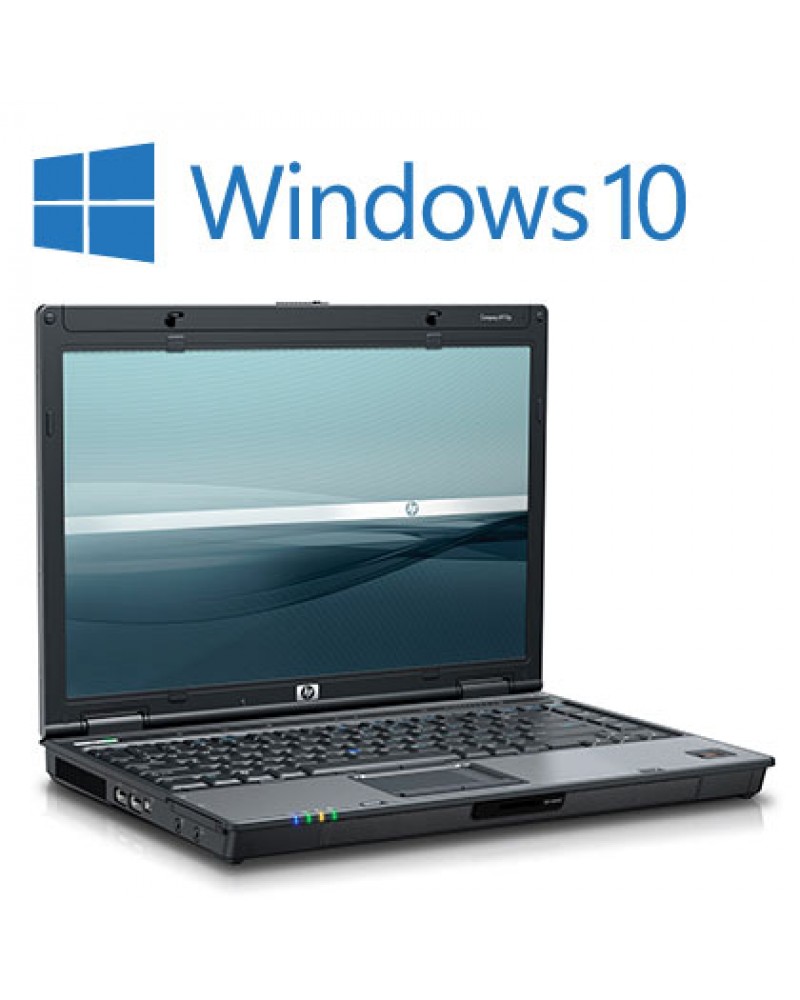
HP 14a with a Pentium N5030 Processor
Running Snes9x EX+ for Android w/USB Gamepad

I've bragged about it on Twitter and Facebook before, but an additional thing to point out is that this thing can GAME! Being android compatible, I can actually load most android games and emulators and get fairly decent results. In this shot is SNES 9x EX+ with Yoshi's Island running and I've not been disappointed, except that the only controller I can get working with it right now is the PowerA Wired Fight Pad (seen above). In all honesty, though, I can probably chalk that up to hardware quality. It also supports a Linux virtual machine for playing Steam games, but with only (never thought I would use that adjective) 64GB of storage, it's not worth the hassle. Last time I tried it was to get an external blu-ray drive working, without much avail. It and Steam are features better reserved for higher storage capacity models aimed at "cloud gaming."

As stated in the title, I would definitely recommend getting yourself one if you've been living under a rock since my last update. Adieu, homies!

Friday, October 4, 2019

A Loathe Letter to Microsoft

Yes, you read that correctly. I was so close to ready to accept Windows 10 as a viable operating system, when Microsoft's update system pushed a firmware update on me, just as I was about to start this review. Compared with my HP Pavilion with an Intel Core i7-8550U, clocked in at just over 1GHz per core, the Asus TUF series laptop with an AMD Ryzen 5 I recently purchased clocked in at about twice the speed was quite responsive, and even handled most of my tasks better than when my HP Pavilion had Windows 10, but that's a story for another review.

I've had issues in the past with Windows 10 since my days at BYU-Idaho, particularly on refurbished machines. When I bought this system, my first thought was to install some form of Linux from the Ubuntu or Debian families, particularly SteamOS, however, all of the effort I put in was for naught. Eventually, I decided to settle with Windows 10 and a bunch of open source supplement software.

This seemed to be working just fine, especially because tracking down the licenses I got from OnTheHub were more trouble than my time was worth in terms of doing a clean install to remove OEM crapware. However, flash forward to this review with the opening scenario, and I am seriously entertaining a revisit of an Ubuntu or SuSe reformat.

Normally what happens when Windows 10 pushes a major update, all I have to do is reinstall my uncurated software. However, this is the first time Microsoft has pushed an OEM firmware update on me, and if it ever happens again, especially if I get my stuff back, I'm giving them every 1-star rating on social media that I can. I refuse to be their ginuea pig in terms of software testing, regardless of what their P.R. department's twisted review data suggests that it's a brilliant idea.

If I am successful in installing Linux on this beast, there will be a more positive follow-up review to come. Until then, if there are any Microsoft employees seeing this on Twitter, I will direct you to my proverbial #1 foam finger where the middle finger is the single digit extended.

Sunday, July 21, 2019

PC in 2019? Don't take (it) stock

A few months ago, I bought a brand new laptop with Windows 10 from my local Walmart. After some trial, error, and feature "updates" that wiped all of my software that wasn't included in the Windows Store, I decided enough was enough, and it was time for Linux. 
At the risk of sounding redundant, this required even more trial and error through various distributions, including Ubuntu, Pop! OS, Fedora, and others, before I finally settled on Zorin. 
This was a sort of last-ditch decision that I have been quite satisfied with, and with the exception of a version upgrade that couldn't be done "in-place," I have been quite satisfied with it. 

A little back-story: this was not my first computer that I received with Windows 10 preinstalled, as I had previously used two other refurbished laptops that came with Windows 10 when they were presented to me. 
However, this was the first one I obtained in a retail setting, and holy crap, bloatware is still a thing in 2019, even with digital distribution. 
This laptop came with a digital license for Windows 10 Home, but I still managed to retain a copy of the Education edition from my days at BYU-Idaho, so I upgraded it. 
This did not really help it much, even after removing said bloatware, so after some careful consideration, I ended up with my current situation.

Picture of laptop not powered on (Razer Phone in background; reviewing later)

This was not a decision that was resolved in one night, because that would be too easy. 
The first distribution I turned to was System76's 'Pop! OS' after a recommendation from a YouTube channel. 
While I had used Ubuntu in the past (which was the distribution's base) the GNOME 3 desktop environment felt very sluggish (this proved to also be true in openSUSE and Fedora, b.t.w). 
I then, per the same YouTube video, tried Arch (or more specifically, its derivative, Manjaro), and that proved to be too complex. 
Thirdly, I tried what was then the newest version of Mint (19). However, after some testing (and after-the-fact research) I found that I had fallen victim to a data-destroying defect in the system kernel, and was back to square one. 

After some inquiries via Facebook, I finally settled on Zorin OS. Besides version upgrades that require me to back up my data first, I am quite satisfied with its performance. 
Thus far it has been able to handle just about every piece of software I can throw at it, with the exception of some Windows 98-era software that Lutris and Wine struggle with, as well as Android compatibility. For the latter, I settled with an alternative dongle that I will expound on in a separate review.

Zorin OS 15 desktop. Quite a striking resemblance to Windows 7.

Now on to the hardware nitpicks: the 8GB of RAM (single stick, I checked) is quite a capable starting point. At some point, I might consider buying a mate for it from Best Buy to double it to 16GB, but at the moment, it doesn't really need it, especially since I killed Windows 10.
Also despite being an i7 processor, there's no dedicated GPU, and unless I was looking at the motherboard wrong, there's no obvious way to add one outside of pulling out either the Optane memory or wireless card. Since I primarily use my laptop for casual gaming, and play more hardcore games on either my phone or the Nintendo Switch (another review for another day), I don't look at upgrade options very often, although I would like to point out the irony that most modern laptops that have Thunderbolt 3 built in also have a dedicated GPU on the motherboard to begin with!

All things considered though, it has definitely been a solid workhorse of a machine, and connects to both my 32" Roku TV (another review) and has Bluetooth capability that will allow me to use the Nintendo Switch's wireless GameCube-style controller somewhat flawlessly (which will also be reviewed separately).

Monday, December 18, 2017

Chromebook 2017: Neverware CloudReady

Over the past semester or two (not sure which), I have been trying to find an OS that will work on the HP laptop I was given without running the risk of overheating and shutting it down or crashing. When it was initially given to me, it had Windows 10 installed. Since then, I have tried both Windows 7 and Ubuntu, and neither have really brought me much relief. At one point, I considered installing RemixOS on it because at some point I considered getting an Android phone, but honestly I wasn't that impressed by the Windows emulator, and figured the real thing wouldn't be much better.

Then I remembered trying ChromeOS at one point and figured I would give it another try. I've read it is supposed to be really good for older PCs and I had recently read an article about an operating system that was nearly identical to it's retail counterpart called CloudReady.

CloudReady UI

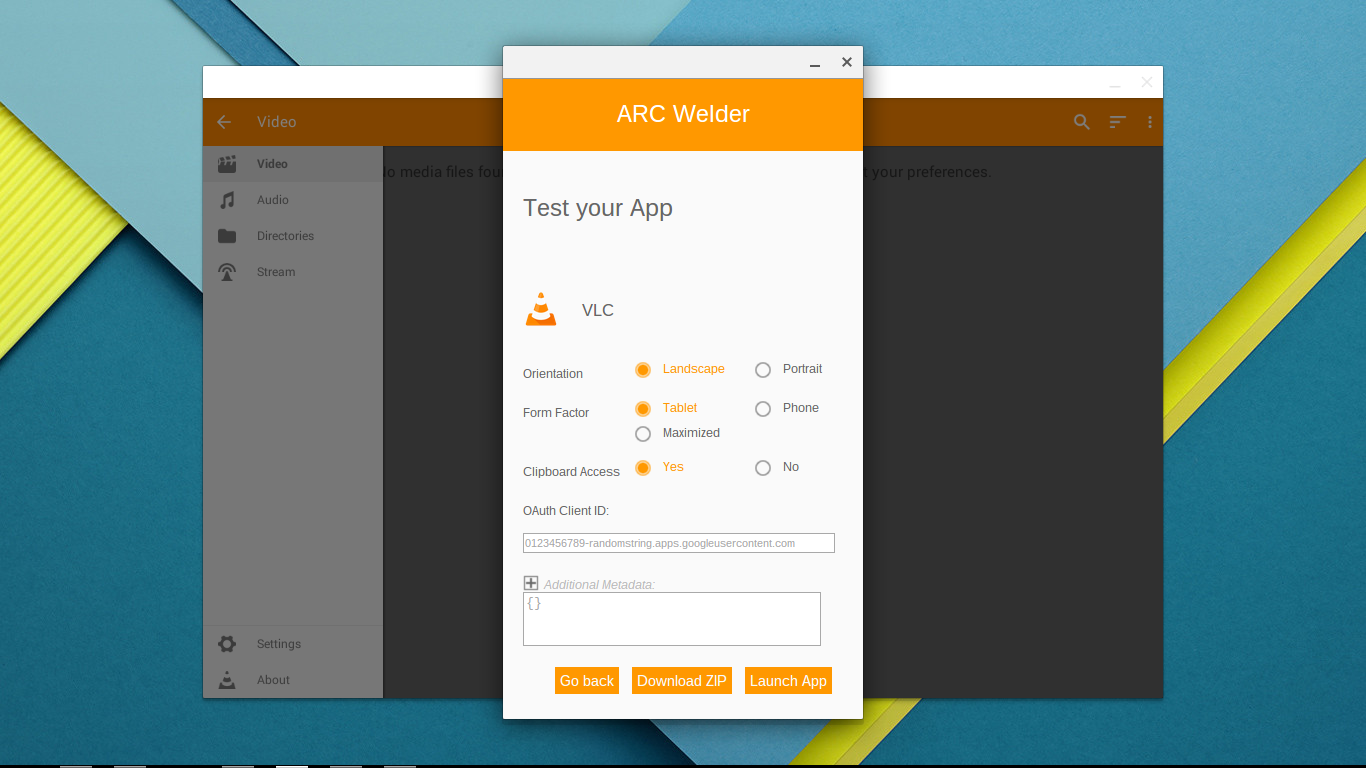
Let me just start out by saying that this is not the same OS I used almost six years ago. Besides having an Office365 version (that costs $1/year and needs a corporate account), it also keeps up with its retail counterpart, including Android App Conversion. From personal experience, two apps are needed for this process, and I prefer to install them in the order I list them. They are ArcWelder, and Twerk.

ArcWelder Chrome App

 Again, from personal experience, ArcWelder serves as more of the back-end of the app conversion experience. I tried to use it first, and didn't have much luck. Maybe if I get into more web programming it'll come in handy, but I've only taken one class so far, so we'll have to wait and see.

Twerk Chrome App

Twerk (not to be confused with a certain dance) is, from what I have found, the more front-end and user interface of the app experience. I have also found that it will not convert an app store APK file to Chrome, so your best bet is to download each app individually and run them on a trial-and-error basis.

As far as what it can do, I have found that it'll work nicely whenever I retake WDD100. I have already found a replacement for Brackets that includes its own version of Beautify built in, and it also synchronizes nicely with Dropbox and other web services, such as Office 365 (even though there is a separate Academic version for that). All in all, it is a worthwhile OS. I just can't use my laptop on my lap directly or else it will overheat and shut down.

Friday, December 1, 2017

Windows 10 S: A Horse of a Different Color

By now, the news has spread about Microsoft's new edition of Windows 10. For the most part, this OS behaves exactly like Windows 10. The only caveat is that it cannot run native Windows applications unless they have been downloaded through the Windows Store. Before I switched to Ubuntu LXDE, I had the opportunity to try this edition of Windows 10 thanks to a trial that allowed existing users of Windows 10 Education users to "upgrade" their license to the new OS. 

Windows 10 S error prohibiting installation of software from native EXE files.

Anyway, as noted by the above image and caption, the "S" in Windows 10 S means, in short, that without third-party software, like Citrix, an end user can only install applications from the Windows Store. While, in the long run, this is a very good idea, in the current state of things, it is a horrible situation for the average consumer that thinks they can get a fully-functional Windows PC at a Chromebook price. Imagine if someone's grandparent walked into Best Buy and wanted a new PC at an affordable cost, and expected all of their existing software to work, only to find the above message on their screen. In short, if enough people bought into it, especially without the proper disclosures, there would be a lot of angry returns from senior citizens and otherwise computer illiterate customers wondering why the crap they can't install iTunes or Quicken or where the heck their FreeCell game went.

That being said, it's not that Windows 10 S is a horrible idea, because it truly isn't. In fact, with the Citrix option, it might even make a great Thin Client option. On the surface (not the new laptop that is included with the OS), however, as stated before, the right marketing needs to be handled to ensure that end users aren't blind sighted by incompatibility issues, and that goes the same for its  corporate minded brother.

Friday, October 20, 2017

"I Can't Do That, Dave"

Editor's Note: Hopefully, I will eventually release a follow up review of a small list of apps to download for the device. It is likely it will be in a combination review of UWP apps for Windows 10.
Front and Rear Views of
HTC One M8 For Windows
Okay, science fiction references aside, I finally acquired a new smartphone. After much thought, research, and a sleepless night or two, I ended up settling on the HTC One M8 for Windows. When it arrived from Amazon, one of the first things I did was try to upgrade it to Windows 10 Mobile. Sure, this seems crazy, but it is powerful enough and I was kind of excited about being able to carry a computer in my pocket that I could connect to my television. However, things haven't quite turned out that way. I tinkered around with various tutorials, and still no luck. Even after I took it to the Verizon store across the street from me to have it activated, I still was not able to upgrade the operating system, and at the time, I was feeling rather defeated. However, as time passed, I started tinkering around with other computer projects, and getting to know the device, I realized that this wasn't all bad. One of the main reasons I wanted Windows 10 on my phone was for the Continuum feature, which allows your phone to act like a standard PC.


However, after further investigation and tinkering, I found two of the next best things: Office Remote, which is an app for controlling PowerPoint slides from your phone, and the other is called Mouse Remote, and as it suggests, it allows you to control your computer from your phone with a companion app for Windows 10 known as PC Remote Server. While it is true that neither of these get me a genuine "PC-In-Your-Pocket" experience in the same respect as Windows 10, honestly, both are equally decent options.

On another note, (specifically the title of this post) I have found Microsoft's Cortana assistant unusually helpful. I was specifically looking for something to help me with scheduling appointments and other stuff where I could always have it on hand, and so far, this has been it.  The app has been decent enough that I have went and re-enabled it on my Windows 10 Education PC. IE for WP8 is also decent and (don't tell anyone, but) I've also found Microsoft Edge to be quite speedy and lightweight, and I was also able to import all of my bookmarks from my previous browser.

Tuesday, October 17, 2017

Home Networking Simplified, Part 1

An example of a wireless router.
A while back, I wrote a walkthrough regarding the setup of a Wi-Fi extender or "booster." Well today I am going to give you the other half of this story. Most of the process of setting up a wireless router is quite similar, however, there are some differences.

Since the router connects from the modem to a host computer, if you're doing this for the first time, you will arguably want to follow the directions exactly as they are shown on the box. Typically, though, one of the things that is typically noted in a router's manual is that the user should shut down their modem before installing the router.

I actually did this with the first one I ever used, and honestly, it isn't absolutely necessary. If anything, it is going to make things take longer, and occasionally you'll get a faulty piece of hardware if you are renting a modem from your internet provider. When that happens, and the internet doesn't come up right away, you'll most likely wonder if you did something wrong. From personal experience, it took three modems, and two line connection tightening trips to have continuous internet when I was at my parents' house.

At any rate, the process of setting up a router is fairly similar to the instructions outlined in my previous post. The last couple of routers I've used came with a setup CD, so once you connect the router to power, your modem, and computer, you should be all set. All that is needed is to pop in the CD and follow the directions it asks for. Most routers will have a "default" default gateway (trust me, there is no intentional double-negative being used here) of 192.168.1.1. I've noticed that Netgear's basic products like to have a custom URL, such as routerlogin.net, or something similar, and this will also yield the same result.

Before you try this, make sure the router is working. On a Windows PC, the easiest method is to open a Command Prompt by typing "command" or "cmd" depending on your OS version into a run/search box and entering the term "IPCONFIG." This term is not case sensitive, and if your numbers start with 169 for the address or gateway, then you most likely have run into trouble. Typically only a manual reset (using the pinhole button) is needed, but sometimes it is just easier to unplug and reconnect your router or modem. If all as well, your situation should look like the one in the previous paragraph.

Anyway, after you have logged into the router, you can (and should) change the default SSID. This term refers to the name of the network that pops up when you try to connect (i.e. Starbucks, Verizon, etc.) and the associated password. Write this new info down and keep it in a safe place until you or your device have it memorized, and can look it up in your browser settings later.

Once you have done this, you should be good to go! Happy surfing! :)

Wednesday, September 13, 2017

The Video Game Crash of 2017

On March 3, Nintendo released their latest console, the Switch. Prior to its release, there was a lot of hype about it, and at the time, including what software the interface would be built on, etc. There was a lot of speculation that this would be an Android-based device, (example here) which I would assume would make it not only a game console, but also a pseudo-productivity tablet. Unfortunately, as time went on, I continued reading newer articles regarding its development, and realized that this wouldn't be the case. That said, I was still looking forward to the console, and the progression of its development and release.

Nintendo Switch diagram (sans Joy Con)

However, as time went on, and its release date came and went, I moved back and forth on my decision regarding if I would purchase one. A lot of its games looked impressive. Mario Odyssey, Bomber Man R, Mario Kart 8 Deluxe and Mario+Rabbids, just to name a few. I also looked into Nintendo's competition in both the console and handheld markets and the PS Vita, PS4 Pro, Xbox One X (a highly original name, by the way!) didn't really entice me. Despite the hype (or lack thereof, in my case), I continued to read up on Nintendo's console and observe its features and gaming library. Here are a few issues that have now turned me against the console and in pursuit of alternatives:

5) Backward-compatibility issues: This is the most obvious deal breaker. As this article from Mic.com states, it is literally impossible to transfer your games from another console to the Nintendo Switch without home brew-level methods, meaning you are SOL for digital content (not that Game Stop would do it anyway, but that's another rant).

4) Rules have changed: As this article from Nintendo Life states, Nintendo has updated the eShop to the point where you can't transfer games from the Wii U or 3DS line to the Nintendo Switch, but you will be able to use the same Nintendo eShop credit. Strike two, Nintendo.

3) Price: I've already forked out $550 for a Nintendo 3DS and Wii U. Add the cost of games and accessories, and eventually I could buy everything that I need to run a Nintendo switch as a dedicated server (not that it has that capability). By now I'm just ready to wash my hands of Mario and move on (more on that later).  

2) Steam: I have switched computers more than once, and every time, I have been able to log on to my Steam Account from the new PC and my content licenses have been able to seamlessly transfer my content licenses from one PC to another. One of the above articles claims that Nintendo Switch licenses will be saved to the "cloud" rather than the system, but it is too little too late. Besides, a Steam Link with Controller costs less than a 4K-compatible gaming Roku.

Steam Link with Steam Controller.

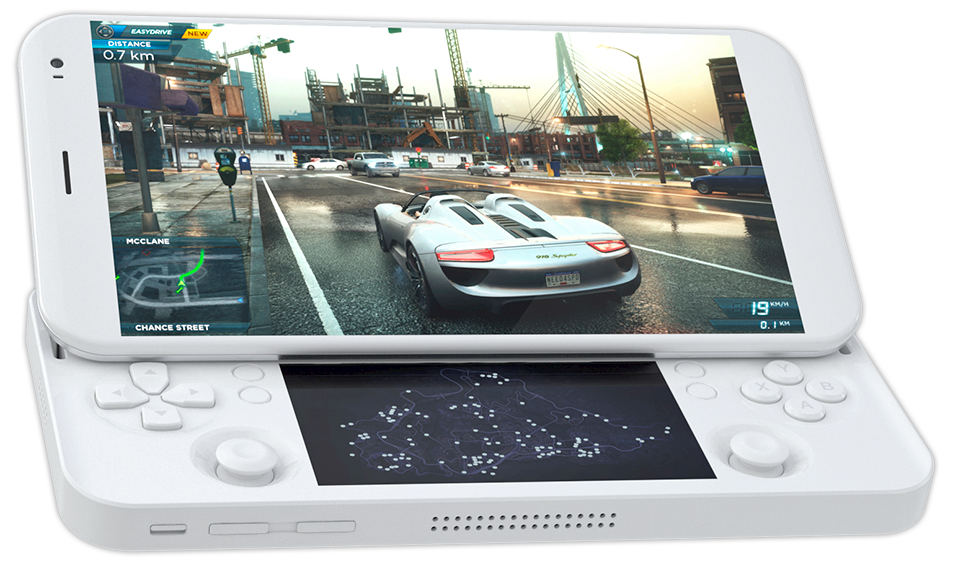
1) Better Mobile options on the market: Upon further research, I have discovered that there is currently an Atom-based handheld device that dual-boots Windows 10 and Android and also features video game controls but improved. Think of it as an improved Xperia Play or PSP Go. If its Windows Mode features Continuum, I might be able to leave my laptop in my backpack when I need to do presentations for class assignments, thus simplifying setup and processes and shortening required time. Plus, if I am desperate for Nintendo Nostalgia, I can always download Super Mario Run or other mobile apps.

PGS "Portable Gaming System"

With those factors in mind, I am ready to wash my hands of Nintendo's console gaming market. It's been a good run, but it is time for me to move on. In a way, history is starting to repeat itself, with various types of home console/computer hybrids flooding the market, and this time, the target will be portable gaming.

For a comparison with the 1983 crash view this: https://www.youtube.com/watch?v=kv7DJrLAZus

Tuesday, September 5, 2017

W10 Review, Pt. 3 (and verdict on "Why Buy New")

A while back I wrote a comparison shopping review on the HP 6910p and Dell XT2. When I wrote this review, I was at the time in possession of a Toshiba laptop running Windows Vista Home Premium, which was very near the end of its life. Since then I have moved to Rexburg, experienced Windows 10 full-time, and have also had some full-time experience with Windows 8(.1).

After a couple of semesters, I received a refurbished Windows 7 laptop that was upgraded to Windows 10 Pro, and came with OpenOffice. I have since replaced the Windows License with my academic one as well as installed my academic copy of Office 2016 (not 365). The laptop in question (which this review was typed on) is an HP 2540p.

Overall, despite running a little on the hot side, this laptop is a decent machine. In comparison with the 6910p, the 2540p has a better processor, better optical drive, double the RAM, and almost double the storage capacity. The 2540p can also write DVDs, whereas the 6910p can only read them, but does write CDs. I've read around that the 2540p is also LightScribe compatible, however, despite being able to download the appropriate software, I have not been able to confirm this particular hardware specification.

At one point, I also bought an HDMI-based TV tuner for my laptop (#FutureReview) and I was able to install it fairly flawlessly. Initially I had a hiccup with the included software, however, after a hard disk re-imaging, I was able to get my Wii U console to output sound to it.

Honestly, there are only two downsides to this computer, and those are the Touch Pad/Track Point system and the amount of heat it generates. I have managed to resolve the first one with a $15 optical mouse from Walmart, and at some point, I will most likely remedy the heat situation with an external fan system that mounts to the bottom of the machine. Despite these two flaws, I would highly recommend this machine to someone who is looking for a school computer that can handle a few Steam games.

HP Compaq 6910p
HP Elite Book 2540p


ModelHP 6910pHP 2540p
Processor2.2Ghz Intel Core 2 Duo  T5900 (Penryn)2.1Ghz Intel Core i7-640LM (Arrandale)
RAM2GB4GB
Storage80GB120GB
OpticalDVD-ROM/CD-RWDVDRW
OSWindows 7 Home PremiumWindows 7 Pro
(Both upgradable to Windows 10 Education)
Other Specs for 6910p and 2540p can be found at Newegg.com (links are model numbers)

Update: As of September 7, 2017, I have since made new discoveries while tinkering with my 2540p laptop. After some tinkering around, my major source of overheating has been the laptop battery. Until I can figure out a permanent solution, I have been currently operating it while plugged into an outlet and have left the battery disconnected and set off to the side. Hopefully this weekend I will be able to figure out the culprit as I will be able to talk with the person who gave it to me/set it up.

Update #2: After my work shift on September 8, I did some browsing around and was able to find and purchase an external fan system for only $5. Very reasonably priced, and has thus far managed to resolve the overheating issue.

Monday, January 16, 2017

Home Networking Simplified, Part 2*

*Author's Note: See Part 1 here. * 

During my time here at BYU Idaho, I realized that the apartment I live in is comprised of a brick exterior, which makes getting a good Wi-Fi signal a pain in the butt, especially since I am in one of the corner apartments. Anyway, a couple of weeks ago, I went down to Walmart to try and remedy this situation. 
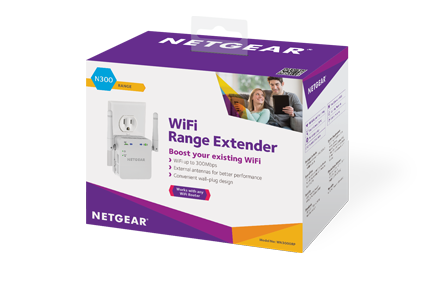
Wi-Fi Range Extender ("Booster")
Available at most electronics retailers
Self-Explanatory device w/Ethernet.
During this particular trip, I remembered that my brother used to be a Comcast Internet technician, as well as some of the advice I used to overhear as a result. At any rate, after either a phone call or remembered advice, as well as the consult of a Walmart associate, I settled on the product featured below, and took it home to set it up. 

After looking through the included instructions, I was able to set it up to mirror my apartment's existing Wi-Fi, with an SSID of x_Ext (where "x" represents the original Wi-Fi identity). I was also fortunate enough to have purchased an Ethernet cable on a previous trip because this one did not have one included in the box. 

At any rate, the device's instructions were very simple and required connecting the device to my laptop with the aforementioned cable, and logging in to the device via Chrome (or another web browser) and connecting it to my apartment Wi-Fi. 

Once I was on the Netgear page, the process was very simple and had a novice-friendly menu. I followed the instructions in the box, which directed me to a Netgear website and from there, I followed their on-screen prompts. The process was very similar to installing a Wireless router (see note above) and the device itself works very effectively, as long as the host Wi-Fi is working. 

At some point this will come in handy if I ever take a work from home customer service job, which normally requires hard-wired internet. Initally, I considered purchasing a "Power-line" kit, however, those require an existing Wireless router, which didn't help my situation, other than buying a separate product at extra cost. 

This device, however, doesn't require an existing router, and is equal to stringing a network cable from one room to another, but with the convenience of an existing Wi-Fi signal. 

In simple terms, it's about as easy as connecting a broadcast antenna to your television. I don't regret buying one, and would recommend it to anyone that is either a) having wireless issues or b) needs to be wired in to the internet but doesn't have that luxury. 

Thursday, July 28, 2016

Play it again, Google!

It is official. On July 25th, I was finally able to install the Google Play Store on the Kindle Fire. I had to use a combination of about four different tutorials in order to get it to work, but that's beside the point.

It was a little frustrating at first, but I managed to be able to do it without rooting the device. I don't remember the exact order, but I used the Windows Instructions found here and following that, I also downloaded and set up the *.APK files on the Amazon Kindle Fire found here and installed them using ES File Explorer as well as ES Task Manager.

Once I installed the ES File Manager and ES Task Manager apps, I was able to run them and install the necessary services as noted above. After running the APK files for Google Play (which only installed settings and the Play Store) I was able to run and download most apps that were available. Initially, I wasn't able to install Pok'emon Shuffle or Pok'emon Go, but after a day or two, they installed without any issues, especially after an update. To date, the only app I cannot install on the Kindle that I had on the Samsung Galaxy S3 is Microsoft Office.

In a way, it's kind of a moot point right now regarding whether or not I have the RTD app, because I do not currently live within the boundaries of the Denver Metro area. At some point, I will need to see if I can download the app that is used by Salt Lake Express, so that I can have easier access to the information regarding when the Walmart Shuttle arrives and departs.

On another note, I have officially tried Pok'emon Go, and I don't see what the hype is. It honestly just feels like a fancier version of the GameBoy games without the RPG part. Both Pok'emon Shuffle and the Pok'emon Trading Card Game (the latter of which I uninstalled, due to storage concerns) are honestly a lot more fun for me. Even Nintendo's self-proclaimed "flagship" game, Miitomo is a lot more fun, and it is basically Nintendo's take on The Sims. Until I get a MicroSD card, I will probably uninstall it and put the Pok'emon Trading Card Game back on because I find it more enjoyable.


Sure, there is no consistently reliable public transit in Rexburg, but honestly, there's not much to do here, either. As I have heard people say before, "Walmart is Rexburg's mall." Therefore, it only makes sense that the Walmart Shuttle is its primary form of public transit. Sure, there are other far-reaching services, such as TRPTA and the actual Salt Lake Express, but both of those cost money, and unless I am desperate to go to Idaho Falls, or have tickets to attend #LDSConf live, I don't really see me having much use for either of them, especially now that I have a bicycle.

I was also able to get new wallpaper for the Kindle Fire, so now it looks almost identical to the Samsung Galaxy S3 that I wrote about almost a year ago. Probably the main key difference is the lack of Android widgets because FireOS replaces them with its own variations that tie in to Amazon services. At any rate, it's nice to have the Play Store and its exclusive apps back, even if it is at the cost of on-board storage. 

Sunday, June 26, 2016

Windows 10: It Doesn't Score That High

About a year ago, I preemptively wrote a review of Windows 10, and voiced my skepticism of it without really giving it a fair trial. Since then, I have gone off to Rexburg, Idaho to attend school at BYU. 

Coincidentally, I have received a chance to try the operating system, because their campus is gradually upgrading their systems to it. I recently got to sit down and try one of these computers, and as they say on courtroom dramas, "the previous motion is sustained." Solitaire runs slower than it did on Windows 7, but it seems that the upgrade process is smooth. There are definitely some good ideas with the platform, but as does every first generation Windows release (pre-service pack), it leaves a lot to be desired.

For example, a solitaire game that didn't even load after a couple of minutes is outright pathetic. Second, the customization options felt as though they were somewhat lacking. Normally, a person can scale back their Windows' visual features to make it look like Windows 95, thus making the computer run faster. However, this is not the case with Windows 10. Sure, there are promises of "mods" or whatever on the internet that promise to restore that kind of functionality, but honestly, that's not really a practical option, and that goes for both economic value and the effect of system performance.

Would I upgrade for myself? Probably not. In fact, I'd be more likely to save up for a used Macintosh before I ever bought a computer with Windows 10 pre-installed. Besides, if I need it that bad, the school offers the Education edition though a few different outlets, including its bookstore and DreamSpark. For now, I feel perfectly comfortable with Windows 7, 8 or even XP.      

Saturday, June 11, 2016

Eight: Ahead of its Time and Gone too Soon

Wow. It's seriously been six months since I have written a review?! This changes now! When I started school at Brigham Young University-Idaho about two months ago, my sister-in-law loaned me her laptop on the grounds that I keep up with my assignments and get good grades in all of my classes that add up to a total of twelve credit hours (C's or better).

Windows 8's controversial "Metro" or Start Screen that replaced the Desktop and Start Menu by Default. Oh if people only realized of the transition from Windows 3.1 to 95!

Now that I am in the second half of the semester, and I have one class under my belt, with two weeks down in another class for the second block period, I have finally had a moment to sit down and write this review. Windows 8.1 was/is a very good concept for an operating system. The problem was that it tried to do too much at once. 

Microsoft's plan was to have "one operating system for every device in your life." The problem was, at the same time that 8 was being developed, Microsoft was also experimenting with the ARM processor architecture. 

This platform being different from the x86/Intel platform, one would think that Microsoft would have learned this lesson from the fiasco of porting Windows NT to PowerPC and other less-dominant platforms of its era. However, since the company has changed hands multiple times in the past twenty years, these lessons get lost with time, much like the key to the City of Ember was lost as it was passed down through each mayor until it ended up in the hands of the descendants of a previous mayor.

But anyway, back to the review. Between the change of interface on its users, and the lack of support from software developers, much like (Windows Media Center), Windows 8 was doomed from launch day. Numerous reviews talked about the confusion between Windows 8 and Windows RT, including the fact that the latter did not have backwards compatibility with older Windows software. Various critics cited failed marketing tactic as the main reason for Windows 8 being the biggest failure since Windows Vista.

And that's another thing: mobile applications from the Windows Store (apps) on Windows 8 are/were forced to run in full-screen mode. On a smartphone, like the HTC One M8, or tablet, like the Microsoft Surface, this is just fine, but in a corporate/desktop environment, where the average user doesn't have a touch screen in their standard office (and upper management is too stingy to pay for upgrades), this kind of interface this kind of interface is, to be quite honest, a step backwards, especially if you are the type of experienced computer user like myself that remembers the good old days of MS-DOS, where every application ran one at a time, in full-screen (Real) mode. At least Windows 8 didn't revert THAT far back (although if it had, the Paris Airport could have upgraded from Windows 3.1 with no hardware costs whatsoever).

Classic Shell for Windows 8.1. This is an add-on that not too many people whom use the OS are familiar with. Had it been advertised more, it might have saved Microsoft's bacon.

Another part of the problem with slow adoption of Windows 8, was that nobody except the technologically gifted was aware of the software extensions that gave Windows 8 the familiarity of its predecessors. Sure, there were articles on websites such as CNet for applications such as Stardock's "Start8" that restored functionality of the start menu, but these cost money, and weren't guaranteed to be friendly with the operating system, but these had the potential to hose your registry if something went horribly wrong. 

Around the same time as the introduction to these third-party applications, Microsoft introduced their own extension known as "Classic Shell." Unlike third-party applications, Classic Shell works more efficiently on the Windows platform, since it is designed in-house by Microsoft itself. Having this programming benefit means that the interface works more seamlessly with the OS and isn't prone to adware that traditionally asks the user to pay for upgrades or other products from the company (although I hear that the Windows 10 version of Solitaire does this--but that's another review).  

Sunday, December 27, 2015

This tablet's on fire! (Not literally!)

So, this year for Christmas I received some really neat items. One of them was an Amazon branded tablet (which I also happen to be starting out on as I am writing this review).

There are a lot of neat things about this tablet. The Amazon Silk browser is almost as good as Google's Chrome. Reading on it is nice as well because the resolution is adjustable to make the print easier to see. 

Once I got the device, I almost immediately decided to set it up. First it went through the process, and when it got to the Amazon part, it automatically connected to Matt and Emily's Prime account, which made the whole process quite a lot easier. I also got a folio cover case to go with it, as well as a set of three screen protectors, all of which installed without any real hassle.

The tablet also takes really nice pictures, which, in terms of quality, are better than Nintendo's handhelds, but not quite as good as the Samsung Galaxy S3, and I didn't notice that the Fire tablet had a flash feature, but I'll look into that more at some point.

I've only installed six apps on the tablet so far, and all of them have been, for the most part, satisfactory. 

The LDS Gospel Library is on par with the variation that I have on my phone, so I haven't had any issues with it.

Sonic CD is, for the most part, easy to control (and apparently that one was downloaded from my brother's Amazon Cloud drive!). 

I also have an app called OverDrive, which allows the tablet to connect to any public library lending system in the country, and my library card from Ohio is apparently still valid, so until it expires, I won't have to get a new card for Colorado or mooch off of my brother's card anymore. 

This will also most likely be how I read books I review in the future, so be warned, when future ISBN's show up on Literary Novelties, they will most likely be for the eBook version and not the physical hardcover version, unless I start listing both separately and accordingly.

One picture example that I will admit is missing from this review is for the interface itself. Because it is an Amazon product, the interface is much more customized when compared with other Android-based products, such as the Samsung Galaxy S3.

While some would say that wouldn't necessarily be a bad thing, in order to obtain access to services with other app ecosystems, such as Google Play, it is, ironically, a requirement to root the tablet itself. 

All in all, for the most part, I would recommend this device to someone whom is unsure about what kind of tablet that they are interested in, and also for someone who doesn't have a GMail address, and therefore, no ties to Google Play.


On that note, even though I do have ties to the latter, this is still a fairly solid device, and although I would most likely have to root the tablet to have Google Play installed (I've read circumstances to the contrary, but I have doubts about them), the Amazon app store does have a decent app selection in its own right (more on that next in the top five section).

At any rate, if there is some uncertainty about what types of apps should be downloaded to the tablet, fear not, I am able to shed some light on that subject. I even have had some experience with this before, because my very first Android tablet (made by "Polaroid" (Southern Telecom--the original company went bankrupt and the trademark was acquired) exclusively had the Amazon App Store pre-installed on it.

With that, here are five apps that I would definitely recommend installing right off the bat. Keep in mind that some of these may or may not be free, but that depends on what Amazon's "free app of the day" is.

5) Flow - This is a sort of "connect the dots" kind of game where you have to match each colored dot with each other and make a corresponding line. It's fun and also a good way to calm one's nerves and unwind after a stressful day.

4) OverDrive - For electronic books, despite being an Amazon device, this app is probably the way to go. It synchronizes with the library of you choice, providing you add your card number and corresponding PIN.

3) OfficeSuite Pro - While most likely not as complete as Microsoft Office, it seems as though it is still a viable alternative, especially since the Kindle Fire does not have Google Play, and only Microsoft Word seems to be available on the Amazon App Store.

2) Amazon Silk - Yes, it seems like kind of a cop-out to list the Kindle's built-in browser as one of the top apps available for it, but it handles browsing the internet just as well, if not better than Google Chrome. Also, cop-outs are the primary reason why this app is listed at number two. It didn't seem right to state that the best feature of a tablet was its browser.

1) LDS Gospel Library - Compared with its Android (Google Play) counterpart, this version reads a lot more nicely since the Kindle Fire can have its print scaled up a notch or two.

So there we have it. Those are five apps to get a new Kindle Fire owner started. As I get more familiar with the device, I will probably make another list. In the meantime, I plan to have more fun with the device and get to know it better. 

Monday, December 7, 2015

Confessions of a Nintendo Apologist

I have been a long-time fan of Nintendo from the get-go (which dates back to the times mentioned in Blake Harris' book, Console Wars). However, in recent years, they've done some things regarding pricing that don't exactly sit well with me.

First off, the pricing methods used with Wii U games hasn't set well with me. Sure, it's nice to have retail box games available in the Nintendo eShop, especially if a user wants to do some game shopping during a blizzard. However, the fact that the prices for digital games v. their retail box counterparts are identical is nothing short of frustrating. The biggest rant on this front is Super Mario Maker. While I am excited for the game itself, I feel as if I purchased it myself, I would prefer to wait a year instead of buying it right away (nobody take any hints from this--it's a general rant!).

Another rant of mine regards the pricing of their name brand peripherals. I have held off purchasing additional Wii remotes and Wii U Pro controllers because the asking prices for them aren't exactly thrifty in price. In fact, when the Wii Remote Plus was first introduced, my initial thought was something along the lines of "Why didn't Nintendo have a limited-time upgrade offer for those of us that bought the original Wii Remote?!" I do understand that a company needs to make a profit, but at the same time, I feel that the with the eighth generation of consoles, game companies have put profits ahead of customer bottom line, which is why I have no issues shopping at third party retailers for used games and hardware (to cut out the middle man). 

Monday, October 19, 2015

Why Buy New When Used Will Do?

About two weeks ago, I mentioned a couple of tablet computers I was interested in that double as laptops. One was the Microsoft Surface Book and the other was the Google Pixel C. Well, I have since realized that I don't necessarily need a new PC for school or Windows 10, for that matter. After finding out that Newegg.com was selling certain older PC models in the sub-$200 range, with reasonably decent specs, I narrowed my options down to two that I am really interested in.
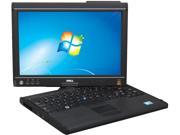
Dell XT2 Docking Station

Dell XT2 shown halfway-orientated
into tablet mode.


This particular option would come
in quite handing for school tasks, 
such as note taking, among others.

Dell Lattitude XT2: This is a 2-in-1 that has Windows 7 pre-installed on it, but the units I am considering do not come with a stylus or DVD burner. While this may seem like a tragedy, Most software is available as a digital download these days, and at one point, I was considering a DVD burner for my desktop anyway. There is an after-market docking station available for this particular model, however, that restores DVD burning functionality, but it is not included in the cost of the laptop itself.

The other tragedy would be that this particular item does not come with a stylus, but those are so affordable to come by these days, that I would only have to go somewhere like Best Buy, Walmart, Office Depot, or even as unlikely of a spot as Big Lots to solve that particular issue. 

Amazon Pricing: Click Here Newegg Pricing: Click Here
Dock (Amazon): Click Here Newegg Price Unavailable

HP 6910P: This particular laptop comes with a DVD burner built in to the computer. Having the extra feautre also makes the computer in question a little on the bulkier side when compared with the Dell XT2, however, the trade off is that the cost of the DVD burner is already factored into the unit itself. It also still looks less bulky than the current Toshiba laptop that I have written this article on. While I wouldn't mind a computer with this design, I am leaning more towards the Dell XT2 because I can leave the DVD burner at home if I do not need it for a particular class assignment that day.
HP 6910p. Left/Right Side Shown.


While having the DVD burner would be a nice addition, in this day and age, having an optical drive to install software is almost unnecessary. A while back I wrote either in here or in my memoir that I was able to find full versions of my favorite childhood DOS games available for download on "abandon-ware" websites for free. Optical drives also have a tendency to make a laptop weigh more in the long run, and sometimes it would be nice to detach it and save the extra weight on class days where I do not need it.

Amazon Pricing: Click Here
Newegg Pricing: Click Here

As for my final verdict between the two, I am leaning towards the Dell XT2. At the risk of cursing my choice, I have had the most success with their hardware, and the cooling systems they use on their hardware have a habit of running quietly while still keeping the machine from overheating. I can also appreciate the lighter-weight benefit that would come from leaving a DVD burner at home on the days where I need to carry a laptop to class for note-taking and other purposes, which the Dell XT2 would fulfill quite nicely, especially with an affordable modern after-market stylus.   

Tuesday, October 13, 2015

Microsoft Office Subscription: Is it cost-effective?

I recently applied for (and got accepted into) Red Rocks Community College. I specifically applied for the Health Sciences program, whose campus is in Arvada, Colorado, which is sort of in the general vicinity of Downtown Denver. But anyway, for this article, that is kind of beside the point.

One of the benefits of this particular academic institution is the fact that they give their students a license for Microsoft Office 365 at no additional cost. When it was first introduced with Windows 8, I was intrigued at the concept. In short, the consumer pays an eight-dollar monthly fee, and receives software upgrades at no additional cost when they are released, as long as the subscription is still valid. 

The subscription, if purchased at retail price, grants a user five desktop licenses, as well as five additional tablet and phone licenses, each. This costs one hundred dollars per year, and also comes with an hour of the paid version of Skype, so there are a lot of benefits.

On the reverse side, a retail box copy of the current version of Microsoft Office (now 2016 for both Mac and PC) is a flat fee of one hundred and fifty dollars (all prices are United States dollars) and not only doesn't get the additional perks of Office 365, but once the Office license is purchased, the user is stuck with the current version of Office on their machine with no hope for an upgrade unless another retail product is purchased.  

Initially, I thought that the pricing meant that Office 365 would be a waste of money, especially since when it was introduced, Microsoft hadn't updated Office for Macintosh since 2011 -- not that I had ever intended to purchase a Mac in the first place. However, a few weeks ago, Microsoft released Office 2016 (as mentioned above) and it was released for Macintosh as well as PC. The cost for the full retail version, as also mentioned above, was between one hundred fifty and four hundred dollars, depending on the version purchased. When placed in this perspective, Office 365 is a bargain.  

The subscription also includes licenses for up to ten mobile devices for the Home version, and up to three for the University edition, but in the latter case, there is a cost of one PC license if three mobile licenses are used. Ironically, Microsoft's Office Mobile apps are already available in the Google Play Store at no charge, regardless of whether the user has Office 365 or not, and I already have them installed on my phone (see Just Made an App Swap) so this isn't really good or bad news, it's just news. On the flip side, though, a person can just head over to Google Play and download the apps separately and save one of their licenses for a desktop or laptop computer as well.

All in all, I feel that yes, Office 365 is a cost effective alternative to its full retail counterpart. While I was skeptical at first, I have practically become converted to the concept, and I will admit, that having a license handed out to me by an academic institution just for enrolling with them might have swayed my vote.  

Tuesday, October 6, 2015

Replacing Vista: Where to go From Here

My Toshiba laptop is getting a little long in the tooth, and I have been throwing ideas around regarding what I should do to replace it and put the beast out to pasture (it's a sobering thought of irony, since the machine I typed this on is the one I am considering replacing!).

Anyway, I have had several thoughts, from nixing the laptop altogether and adding a couple of parts to my Dell desktop, to getting a completely different computer. I even at one point considered getting a 2-in-1, such as the Microsoft Surface Pro, HP x2 or x360. However, every time I try to reach a final decision, I always end up back at square one with no decision reached whatsoever.

At one point, I considered purchasing a Google Pixel device. The problem with that is both models that have been released have been Chromebooks, and after my experience with the Samsung 500c, I had just about sworn them off. That was until I saw an article for the Pixel C Tablet. Despite being an Android product, it at least doesn't stick you with Chrome and nothing else, and actually tries to be an every day use computing device.

Google's Pixel C Tablet. Introduced instead of a flagship Chromebook.

Well, today I saw a review for a couple of new Microsoft Surface devices. Now ordinarily, I would pretty much ignore news like this, and I have only ever considered purchasing a Surface tablet once. Just the fact that they only sell half of a computer with a starting price of $500 is pretty outrageous in my mind, but on the other hand, Apple sells the iPad for about that price, and technically speaking, since a person needs Team Viewer or another piece of Remote Desktop protocol software to do anything productive on it, it really only counts as 1/4 of a computer. On that note, it drives me nuts how quickly these have been adopted in the Enterprise market.

Anyway, I found the a fore-mentioned article in my Facebook news feed, and it was "click bait" at first sight. It seems as though every two years, Microsoft decides to upgrade their "flagship" (another overused word in the technology industry) tablet, just as Apple and Google do with their phones (although Apple and Samsung's cycle seems to be about six months anymore!--but that's beside the point).

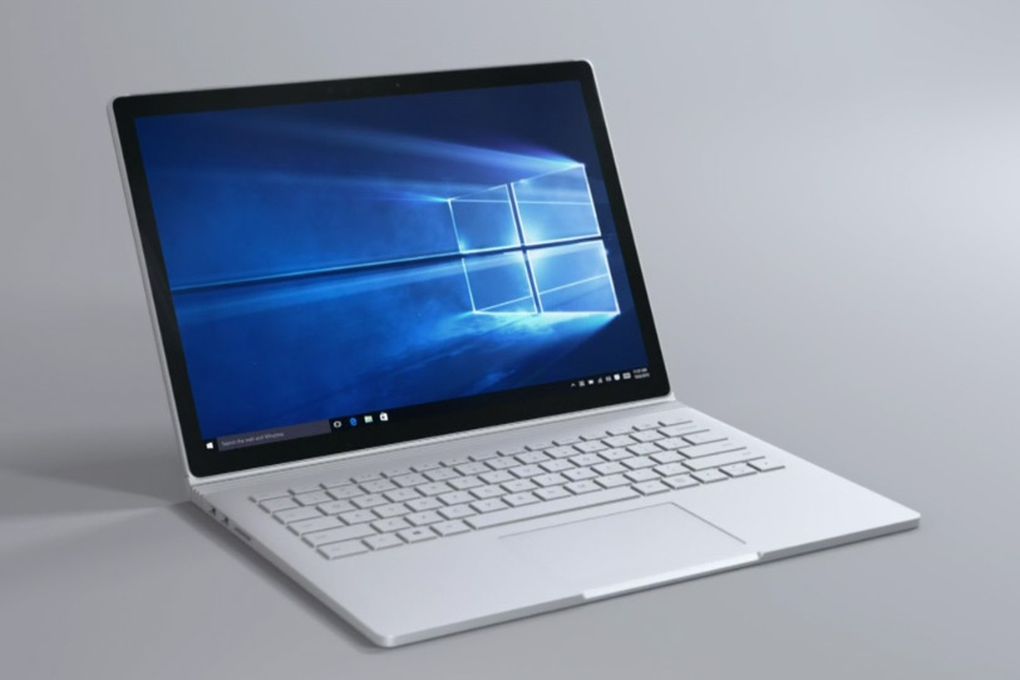
I then take a look at the article, and discover that not only is Microsoft making a fourth Surface Pro tablet, but they are also making a (nearly) full-functioning laptop. Dubbed the "Surface Book," this thing has a sort of appeal that hasn't won me over on a new computer in a while. It also comes with Windows 10, and seems as though it will fit in a backpack without weighing a person down. 

Microsoft Surface Book. Announced today.

After seeing the article (and a picture similar to the above one to go with it), my interest is captivated. Sure, it doesn't have a DVD burner or other type of disc drive, but in this day and age, practically nobody needs one. Besides, if I did go with the parts option mentioned above, it would save some weight when toting around in between classes. 

All in all, the Surface Book seems like a real winner in mine (pun intended!). At some point after it is released, I feel as though I ought to go down to the Park Meadows Mall in Centennial and try it out. It looks as though it is a really solid device.